An MPP file arrives and you don't have Microsoft Project. Here are the realistic options, from trial software to browser viewers, and how to choose.
An .mpp file is a Microsoft Project project file. In a shipbuilding project, it may contain the master schedule, a production programme, a subcontractor schedule, a commissioning plan, or a detailed activity list prepared by a planner.
The problem usually starts when someone sends you the file and you do not have Microsoft Project installed.
This happens regularly in project environments. A subcontractor may send an updated schedule to the main yard. An owner's representative may ask you to review an MPP file. A planner may move to a new company where Microsoft Project is not available on the standard workstation. Or a client may simply send an old schedule for reference.
You do not necessarily need a full Microsoft Project installation just to inspect the file. The right option depends mainly on what you need to do with it.
First, Decide What You Need From the MPP File
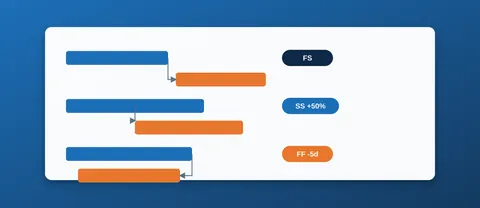
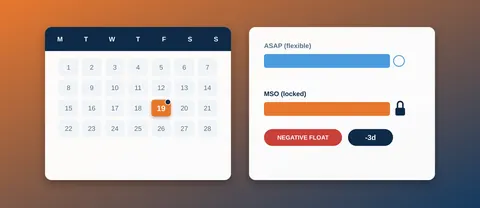
An MPP file is more than a document containing a list of dates. It can contain tasks, durations, relationships, calendars, milestones, constraints, resources, baselines and progress information.
That means the best way to access it depends on the purpose.
If you only need to check when a particular activity is planned to start, you have very different requirements from someone who needs to update hundreds of activities every week.
For a one-off review, installing or purchasing project-management software may be unnecessary. For regular schedule development and maintenance, a viewer will eventually become too limited.
Use a Free or Trial Microsoft Project Option
The most direct solution is to use an official Microsoft option that provides access to Project functionality for the period and conditions available to you.
A trial or evaluation option can make sense when you need to work with the file rather than simply look at it. The important distinction is that availability, licensing conditions and included functionality can change, so check the current Microsoft offering before relying on it for ongoing work.
This approach is most useful when you need to edit and save the schedule, inspect its structure in detail, or work with features that a simple viewer does not support.
The disadvantage is straightforward: you may need to install software, sign in with an appropriate account, and eventually require a paid licence if you need continued access.
For someone who has received one MPP file and only needs to check a few dates, this can be more effort than necessary.
Consider Microsoft Planner (Formerly "Project for the Web")
Microsoft used to offer a separate browser-based scheduling product called Project for the web. As of August 2025, Microsoft retired that standalone product and folded its functionality into Microsoft Planner, under premium plans such as Planner and Project Plan 3 or Plan 5. Existing Project-for-the-web plans carried over automatically, so if your organisation already has one of these Microsoft 365 plans, this consolidated Planner experience is worth checking.
Do not assume, however, that this is simply a browser version of desktop Microsoft Project that opens every existing .mpp file with identical functionality. Planner's project-scheduling tier is built around its own plan structure rather than being a direct MPP-file viewer.
If your requirement is specifically "I have this existing MPP file; can I open this exact file and see everything in it?", verify current MPP compatibility and the features available in your particular Microsoft 365 environment before choosing this route.
For organisations already invested in Microsoft 365, it can still be a sensible option for ongoing project work going forward, even if it is not the fastest way to open one specific inherited MPP file.
Ask the Sender for Another Format
Sometimes the simplest solution is not to open the MPP file at all.
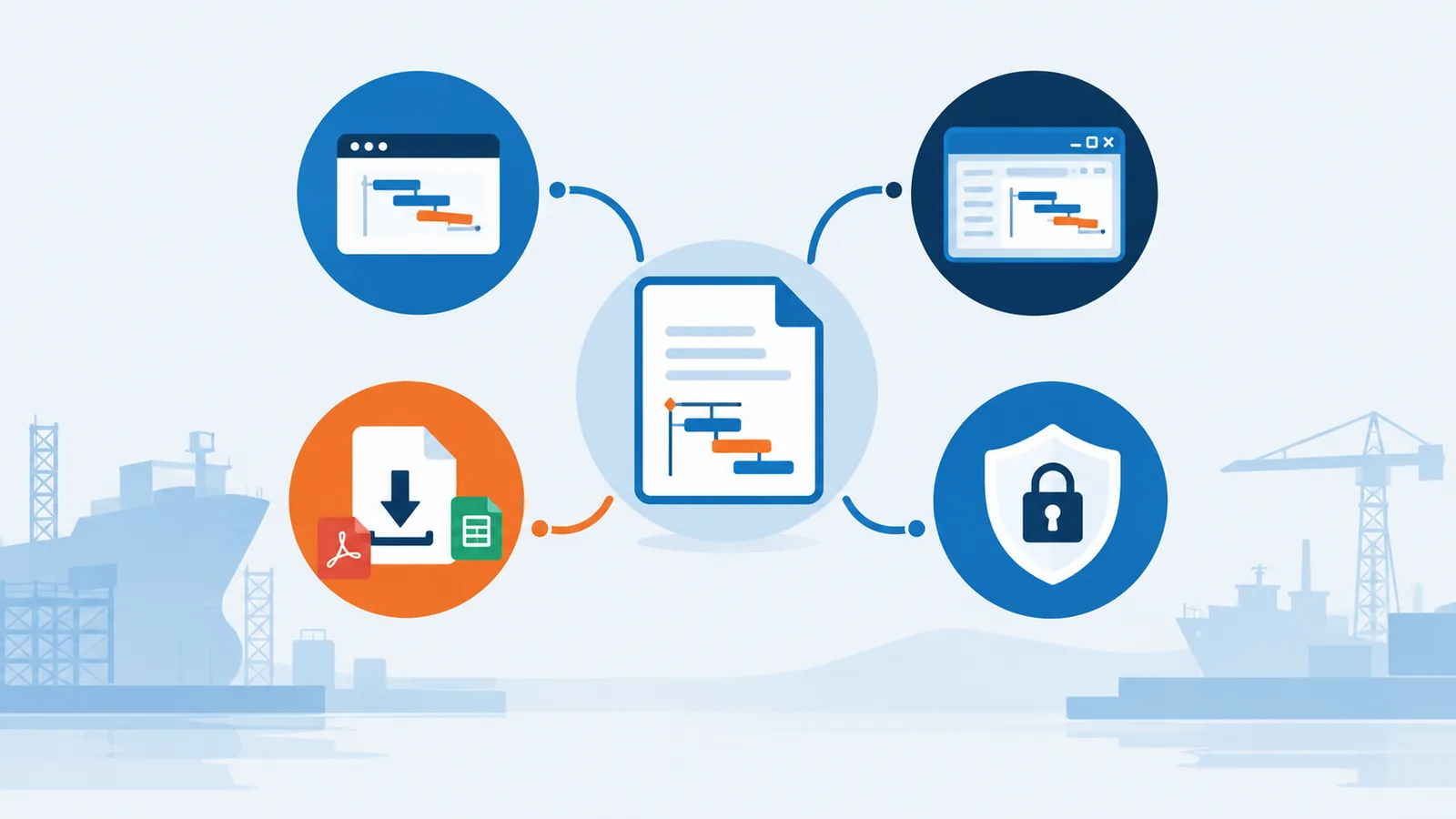
If you only need to review the schedule, ask the person who sent it for an export that matches your requirement. A PDF can be useful for reviewing the Gantt chart and planned dates. Excel can be more useful when you need to sort, filter or analyse a list of activities.
This is particularly practical when working with an owner, subcontractor or management team that does not need to exchange the complete project file.
There is also an important limitation. An exported PDF or Excel file is generally a representation of the schedule, not the original project model. Relationships, calendars, constraints, baselines, resource settings and other scheduling information may not be preserved in a form that you can continue working with.
If you need to understand the schedule logic or make changes, ask for the original MPP file rather than relying on an export.
Install a Dedicated MPP Viewer or Reader
Another option is dedicated third-party software designed to read Microsoft Project files.
These applications can be useful when you regularly receive MPP files but do not need the full capabilities of Microsoft Project. Some are designed primarily for viewing, while others offer additional schedule-analysis or editing functionality.
The main advantage is that a desktop viewer can avoid repeatedly uploading project files to an online service. It can also be convenient when your company handles schedules that contain commercially sensitive information.
The tradeoff is that you have to install and maintain another application. Compatibility can also vary. A viewer may display the basic Gantt chart correctly but not reproduce every feature, custom field, calendar, formatting choice or scheduling behaviour contained in the original file.
Before depending on a third-party viewer for professional project control, test it against a few real schedules from your environment.
Use a Browser-Based MPP Viewer
A browser-based viewer is another practical option when you simply need to inspect an MPP file without installing Microsoft Project.
The basic idea is straightforward: upload or open the MPP file through a web service and view the schedule in your browser. This can be convenient when you are using a temporary computer, working with a colleague's file, or only need to check information once.
For a detailed explanation of how browser-based viewing works, what you can normally see, and the limitations to consider, see How to Open an MPP File Online in Your Browser.
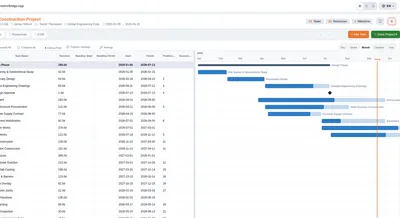
Project2-me also lets you open MPP files online for free with its browser-based MPP viewer, built for this exact use case.
There is one issue that should not be overlooked: data privacy. When an MPP file is uploaded to an online service, the file may be processed on a third-party server. Project schedules can contain commercially sensitive information such as vessel names, contract dates, production plans, costs, resources or subcontractor information.
Before uploading a project file, check the service's privacy and file-handling policies and follow your company's information-security requirements. For confidential shipbuilding programmes, an approved local application may be preferable.
Named Tools at a Glance
The options above are categories. If you want to know which specific products people actually use, the table below summarises the most common ones. It reflects what each vendor publishes about its product as of September 2026. Products, free tiers and file-handling policies change, so check the vendor's own site before relying on any of it, especially for confidential files.
| Tool | Type | Free option | Edit and save back to .mpp | Worth knowing |
|---|---|---|---|---|
| Microsoft Project | Desktop | Trial | Yes | The reference application. Needed if you own and maintain the controlled schedule. |
| ProjectLibre | Desktop, open source | Free | Opens .mpp; saves in its own format and exports Microsoft Project XML | A full scheduling tool rather than a viewer, so there is more to learn. |
| Project Plan 365 | Desktop, mobile and browser | Free read-only mode with a limited set of views | With a paid subscription | One of the few non-Microsoft tools that works directly with .mpp as its native format. |
| Seavus Project Viewer | Desktop viewer | Time-limited trial, then paid licence | No, read-only | Aimed at teams that regularly receive .mpp files and only need to read them. |
| Steelray Project Viewer | Desktop viewer | Time-limited trial, then paid subscription | No, read-only | Also reads Primavera P6 .xer files. |
| GanttPRO | Browser-based project management tool | Free trial | No; the .mpp is imported into a GanttPRO project | You need to create an account before you can import and view a file. |
| Aspose online MPP viewer | Browser | Free | No | Uploaded files are kept on the vendor's servers and deleted after 24 hours, according to the vendor. |
| project2-me MPP viewer | Browser | Free, no account | No; in-session editing with export to Microsoft Project XML, Excel and PDF | Files are processed in server memory and not written to disk. |
Two differences matter more than the feature lists. The first is whether you need to change the schedule and send it back as an .mpp, which narrows the field to Microsoft Project itself or a paid editor. The second is where your file goes: a desktop viewer keeps it on your machine, while every browser tool, ours included, uploads it to a server. How long it stays there differs from one service to the next, so read the policy. What you can do with the file once it is open is covered in our MPP File Handbook.
Match the Option to the Job
There is no single best way to open an MPP file without Microsoft Project.
If you received a file once and only need to check a milestone or activity date, a browser viewer or dedicated viewer may be enough. If someone needs a simple management report, asking the sender for a PDF or Excel export may be easier. If you regularly develop and update project schedules, you will probably need a full project-management application rather than a read-only viewer.
For shipyard planners, the distinction between viewing a schedule and managing a schedule is particularly important. A viewer can be perfectly adequate for checking whether a block, system, test or delivery milestone is planned for a particular date. It is a different tool requirement when you need to change logic, update progress, recalculate dates, manage baselines or maintain the master schedule.
So before looking for software, start with the practical question: Do I need to open this MPP file, or do I need to work on it? Once that is clear, choosing the appropriate option becomes much easier.
If you are on the other side of this problem - starting with nothing rather than an MPP file someone sent you - see Creating a Project Schedule from Scratch in Your Browser.