A practical handbook for .mpp files you didn't build: what a viewer can and can't do, how to read the schedule, how to share it, and how to review it.
Someone sends you an .mpp file and you don't have Microsoft Project. Getting it open is no longer the hard part: our lessons on how to open an MPP file without Microsoft Project and how a browser-based MPP viewer works cover that step. This handbook deals with everything that comes after it.
It is written for the people who handle Microsoft Project schedules without necessarily owning them: owner's representatives, project controls engineers, subcontractor planners, class and client reviewers, commercial staff. It has four parts. The first explains what you can and cannot do with an .mpp file outside Microsoft Project. The second teaches you to read a schedule correctly. The third is for the schedule owner who has to send a schedule to people without the software. The fourth sets out a method for reviewing a schedule without changing it. The examples come mostly from shipbuilding and heavy construction, but the principles apply to any Microsoft Project schedule.
Viewing vs Editing an MPP File Outside Microsoft Project
People tend to assume one of two things about opening an .mpp file without Microsoft Project. Either an online viewer shows a picture of the schedule and nothing more, or it is a full replacement for Microsoft Project. Neither is right. A capable browser viewer exposes most of the schedule data, supports real review work and even allows temporary edits. The important limit is what happens when those edits need to become part of the controlled project schedule.
What an MPP file actually gives you
An .mpp file is not a picture of a Gantt chart. It is a project database holding the information Microsoft Project stored when the schedule was last saved. Depending on how the schedule was built and maintained, that can include tasks, summary tasks, durations, dates, dependencies, resources, assignments, calendars, baselines and progress data.
That matters when you open someone else's file. You are not connected to their schedule as a live system. You are reading the state it was in when it was saved.
Suppose a shipyard planner saves a subcontractor schedule on 18 September with Block 214 Erection showing a planned finish of 30 September. You receive the file on 25 September. Opening it tells you nothing about what changed between 18 and 25 September unless those changes were saved into the file you received.
The same applies to progress. If actuals were last entered against a status date of 18 September, no viewer can turn that into a 25 September update because today's date is 25 September. A viewer can display the data that is present and calculate from it. It cannot reconstruct events that were never saved.
So before interpreting any dates or earned value figures from a file you have been sent, establish two things: the schedule's status date and when the file was last updated. Otherwise a perfectly readable Gantt chart can give a misleading impression of how current the information is. Part two of this handbook comes back to this in detail.
What you can inspect
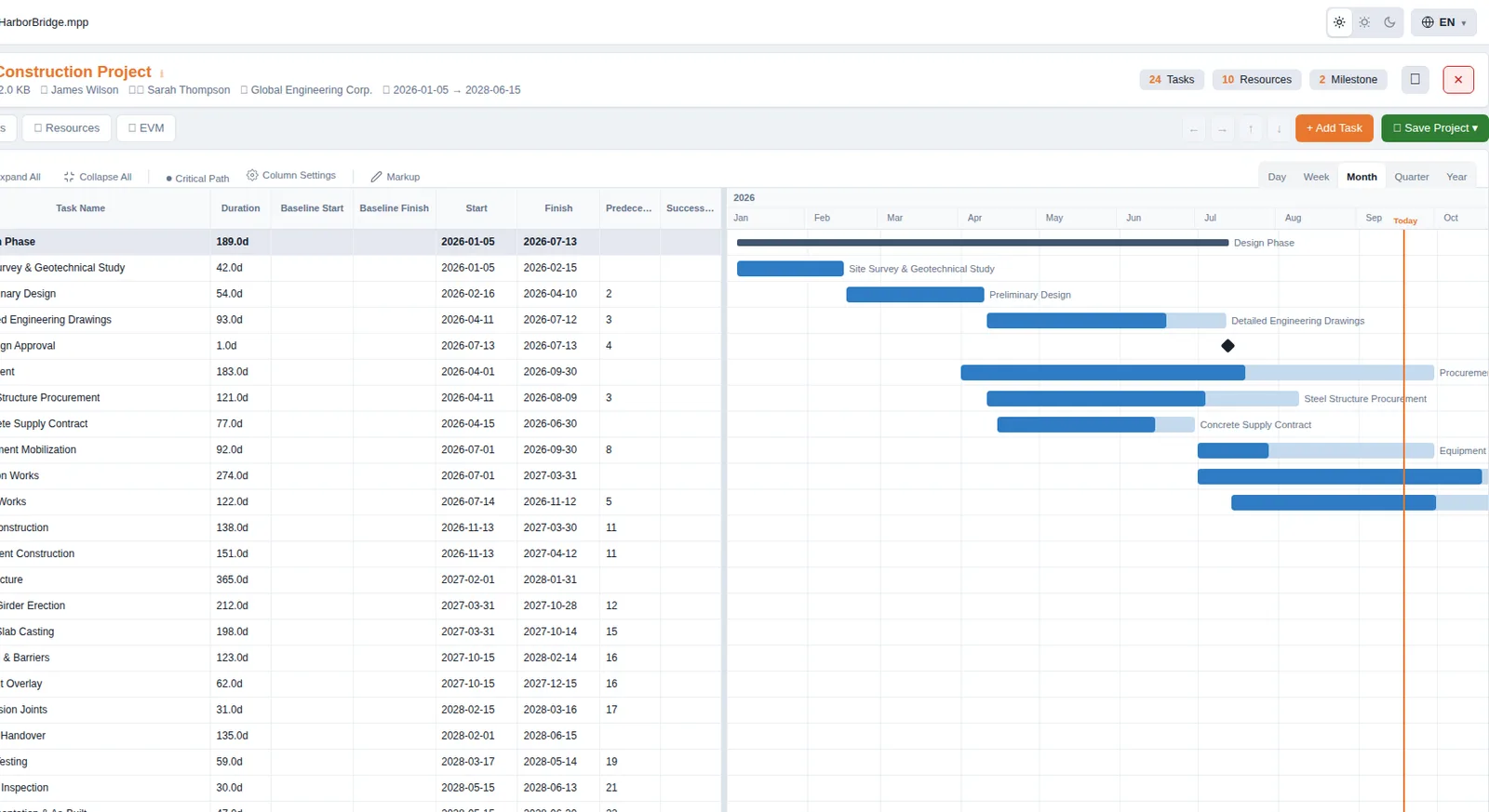
A capable viewer reads the project data and rebuilds it as an interactive Gantt chart rather than a flat image. You should expect to be able to inspect:
- The WBS and outline structure, with summary tasks that can be expanded and collapsed.
- Durations, start dates and finish dates as stored in the schedule.
- Dependencies, including finish-to-start, start-to-start, finish-to-finish and start-to-finish relationships, with any lag or lead.
- Milestones and summary bars, drawn differently from ordinary activities.
- Baselines, so planned dates can be compared with the current schedule.
- Resource assignments on each task.
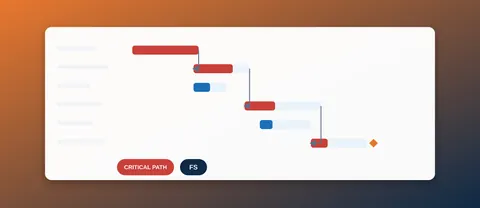
- The critical path, highlighted so you can see which chain of activities drives the calculated finish.
Take a simple block erection sequence:
| Activity | Duration | Relationship |
|---|---|---|
| Block 214 Transfer to Erection Area | 1 day | Start |
| Block 214 Erection | 3 days | FS |
| Welding and Alignment | 4 days | FS |
| Survey and Dimensional Check | 1 day | FS |
| Block 214 Erection Complete | 0 days | FS |
Outside Microsoft Project a reviewer can expand the relevant WBS branch, follow this logic, check the dates and see whether the completion milestone sits on the critical path. None of that requires editing the owner's master schedule. It is exactly what you need when a subcontractor sends a schedule and you want to know whether its key dates match the contract milestones, or whether a delayed activity is on the critical path.
Earned value and S-curves
Where the file is cost-loaded, has a baseline and contains progress, a capable viewer can go beyond the bars. The project2-me viewer calculates BCWS, BCWP and ACWP, with SPI and CPI, and plots S-curves of baseline against actual progress.
These figures are only as good as the source schedule. A file with no meaningful cost data, no proper baseline or stale progress produces numbers that look precise and mean very little. If a cost-loaded outfitting package shows an SPI of 0.82, do not treat that as an independent assessment of site performance. Check the baseline, the status date and how progress was recorded first. If the file represents an earlier reporting period, so does the SPI.
A viewer makes earned value easier to inspect. It does not replace schedule control and reporting discipline.
Editing: more than read-only, less than Microsoft Project
Many online viewers are strictly read-only. The project2-me viewer also supports in-session editing:
- Adding, editing and deleting tasks.
- Indenting and outdenting tasks to change their outline level, and moving them within the structure.
- Adding, editing and removing resources and changing assignments.
- Editing project information such as the project name and dates.
This is useful in review meetings and for what-if questions, because you can test a change without touching the owner's original file.
Imagine a shipyard team reviewing the erection sequence for a hull block. During the meeting the class surveyor's office says a two-week inspection hold may be needed before erection. The current schedule has no such activity. In the browser the reviewer inserts it:
| Activity | Duration | Logic after the edit |
|---|---|---|
| Block Erection Preparation | 3 days | After predecessor complete |
| Class Inspection Hold (new) | 10 working days | FS after preparation |
| Block Erection | 5 days | FS after inspection hold |
| Block Erection Complete | 0 days | FS after erection |
The team can now see which downstream activities move. If Block Erection sits on the critical path, the ten working days flow through to the next milestone and possibly the project finish. If there is float on that path, some downstream dates may not move at all, and the meeting learns how much protection the sequence really has.
This is a what-if exercise. The project master schedule has not changed. A temporary copy of the schedule data has changed so that the team can see the consequence of an assumption. Say so explicitly in the meeting: a date shown after a temporary edit is a scenario result until the schedule owner has reviewed and accepted the change.
What happens to browser edits
Edits in the project2-me viewer exist only for the current session. The file is uploaded and processed on the site's server, in memory only. It is not written to disk, stored or shared, and there is no account. If you close the tab without exporting, the changes are gone.
That suits analysis rather than uncontrolled modification of a master schedule, and it gives you a simple rule: if a browser edit matters, export it before you close the session. If it doesn't matter, there is nothing to keep.
The limit that matters: getting changes back into an .mpp
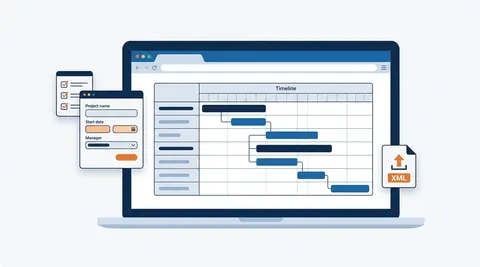
This is where browser viewers and Microsoft Project part ways. The project2-me viewer cannot save the edited session as a native .mpp file, cannot overwrite the file you opened and cannot create a new .mpp. It exports to Microsoft Project XML, Excel and PDF.
That does not mean no software other than Microsoft Project can write .mpp files. The format is proprietary and undocumented. Reading it is well understood by now, writing it correctly is much harder, and a few commercial developer libraries (Aspose.Tasks, for example) do it. Those are programming toolkits, not free browser viewers. So when a website says you can "edit an MPP file online", read it as "edit a copy of the schedule data". The original file is not modified.
For a reviewer, the useful question is not "can I edit an MPP online?" but "can I make the proposed change, keep the result in a usable form and return it to the schedule owner for controlled incorporation?" For that, Microsoft Project XML is the bridge.
How the XML round trip works
Take the inspection hold from the meeting above. Rather than treating the browser session as a new master, the reviewer exports it as XML:
- Open the original schedule and make the agreed what-if changes.
- Check the changed dates, relationships and milestones in the browser.
- Export the revised schedule as Microsoft Project XML.
- Send the XML to the schedule owner with a clear description of what was changed and why.
- The owner opens the XML in Microsoft Project and compares it with the controlled master.
- The owner confirms that the intended logic is there and that nothing important was lost or altered.
- After review and approval, the owner incorporates the change and saves the controlled .mpp.
Microsoft Project opens XML files directly and can save the result as .mpp. Tasks, links, durations, resources and assignments come across, and calendars to the extent the viewer models them. What the XML should not be assumed to do is reproduce every feature and setting of the original schedule. Anything the viewer doesn't model will not be in its export.
That matters on a controlled shipbuilding or construction programme. A subcontractor's proposed revision might change a date that looks harmless in isolation but affects a higher-level milestone, a crane sequence or an interface with another contractor. The XML is the transport for a proposed revision, not evidence that the revision is approved. Name it accordingly, so that a proposed revision dated 25 September can never be confused with the approved master.
What the schedule owner should check after importing XML
Opening the XML and seeing the new task is not the end of the round trip. The owner needs a schedule-level check:
- Project dates: the project start and other controlling dates are unchanged.
- Logic: predecessors and successors around the edited area are as intended.
- Durations: durations and working-time assumptions are intact.
- Calendars: project, task and resource calendars still behave as before where they matter.
- Resources: assignments and resource data are still usable.
- Milestones: contractual and internal milestones connected to the change are correct.
- Baselines: the baseline used for variance reporting is still the right one.
- Critical path: recalculate and inspect the critical path after the change.
- Custom information: custom fields, formulas and other project-specific features the viewer does not model are still correct in the master.
The last point is the reason the owner, not the reviewer, remains responsible. The browser session answers "what happens if we change this?" Only the controlled schedule can answer "is this the approved plan?"
Choosing PDF, Excel or XML
The right export depends on what the recipient does next.
XML when the schedule goes back to the scheduler. A project controls engineer proposes the two-week inspection hold and wants the scheduler to evaluate it in the master programme. XML keeps the structure and gives the owner a direct route into Microsoft Project.
Excel when the recipient needs data, not logic. A commercial manager wants activities, dates and durations to filter by subcontractor or work package and compare against a cost report. A spreadsheet is far easier to work with for that than a Gantt chart.
PDF when the recipient needs a fixed report. A client progress meeting needs a dated Gantt extract with milestones, baseline and current dates. A PDF can be read and archived by anyone and nobody can change the logic by accident.
Practical limits outside Microsoft Project
A browser viewer covers a large part of the work done by people who receive schedules rather than own them. There are still cases where the desktop application matters.
Password-protected files. The project2-me viewer does not open them. The owner needs to provide an unprotected copy, or the recipient needs Microsoft Project.
Macros and VBA. A schedule that relies on VBA automation for reporting or data clean-up is more than tasks and links. A browser viewer does not provide the VBA environment.
Custom field formulas. Teams often build reporting logic into custom fields. If that logic is central to how the schedule is reported, validate results in Microsoft Project rather than assuming an external viewer reproduces every calculation.
Enterprise scheduling features. A standalone project file is different from a schedule embedded in an enterprise environment with shared resource pools and organisational controls. A viewer is not a replacement for that environment.
Very large master schedules. A subcontractor schedule with a few hundred activities is a different problem from an integrated master with many thousands of activities and extensive resource data. Even when the file opens, the better practice is often to exchange controlled extracts rather than the whole master.
Side by side
| Capability | Microsoft Project (desktop) | project2-me browser viewer |
|---|---|---|
| Open .mpp / .mpt (Project 2007 to 2021) | Yes | Yes, up to 100 MB, except password-protected files |
| Open .xml and .mpx | Yes | Yes |
| Interactive Gantt, WBS, dependencies | Yes | Yes |
| Critical path and baseline comparison | Yes | Yes |
| EVM figures and S-curves | Yes, via reports and fields | Yes, calculated automatically |
| Edit tasks and resources | Yes | Yes, for the current session |
| Save to native .mpp | Yes | No |
| Export to MS Project XML | Yes | Yes |
| Export to PDF and Excel | Yes | Yes |
| Macros (VBA), enterprise features | Yes | No |
| Licence or account required | Yes | No |
When a browser viewer is enough, and when it isn't
A browser viewer is usually enough when you receive and review schedules rather than maintain the controlled master:
- Checking a subcontractor schedule's dates, logic, milestones and critical path.
- Comparing current dates with the baseline.
- Looking at resource assignments without taking ownership of the file.
- Pulling earned value figures and S-curves from a cost-loaded schedule.
- Testing a proposed change in a meeting and returning it to the owner as XML.
- Turning an .mpp into Excel for analysis or a PDF for a meeting or the project record.
- Building a straightforward schedule from a blank project when the full desktop feature set isn't needed.
You still need Microsoft Project when you own the controlled .mpp and maintain it over the life of the project, and in particular when:
- Document control requires the native .mpp itself to be updated, with no XML step in between.
- The schedule depends on VBA macros, custom field formulas or enterprise features.
- The source file is password-protected.
- A large integrated master needs desktop-level control and validation.
So the real boundary is not "viewing versus editing". A capable browser viewer lets you inspect nearly everything and make temporary changes. The boundary is ownership of the controlled native schedule. If your proposed change needs to become part of it, export it as XML, let the owner validate it in Microsoft Project, and let the owner decide whether it becomes the next approved version.
How to Read an MPP Schedule
Opening the file is the first step. The harder part is understanding what the schedule is actually saying. A Gantt chart may hold hundreds or thousands of tasks, but the reading method is always the same: start with the WBS, find the detail activities, understand their durations and calendars, trace the dependencies, then check constraints, the critical path, baselines, progress and resources.
Throughout, keep one distinction in mind: what the schedule calculates versus what the project team has actually achieved. A finish date may be a forecast. A percent complete may be weeks old. A summary bar may stand for two hundred activities rather than a piece of physical work. And the critical path you see today may not be the critical path next month.
The running example in this part is a single hull block, Block 214, going through steel fabrication, pre-outfitting, blasting and painting, and erection.
Start with the WBS and outline structure
The WBS tells you how the schedule has been organised. In Microsoft Project, tasks sit at outline levels, and higher-level summary tasks group the detail activities beneath them:
- Block 214
- Steel Fabrication
- Pre-Outfitting
- Blasting and Painting
- Block Erection
Each heading may contain further levels. Pre-Outfitting, for instance, might break down into pipe installation, cable trays, ventilation ducting and equipment foundations.
A summary task is not a piece of work performed by a crew. It summarises what sits beneath it, and its dates and duration are calculated from those tasks. If the first fabrication activity starts on 1 October and erection finishes on 28 October, the Block 214 summary spans that period even though nobody performs an activity called "Block 214" for four weeks. When you read a progress report, a 28-day summary bar does not mean one team has been working for 28 days.
Use the outline controls to move between levels: read the top of the WBS to understand the structure, then expand the branch that contains the work you care about.
Two special cases are worth recognising. Recurring tasks, such as a weekly coordination meeting or a periodic inspection, represent repeated occurrences, not one continuous activity. Inactive tasks stay in the file without taking part in the schedule calculation. Planners use them to keep a cancelled option or a historical item. Do not read an inactive task as current planned work.
Understand what a duration means
A duration in Microsoft Project is working time, placed on the calendar according to the calendar that applies to the task. 5d means five working days, not five consecutive calendar days. An elapsed duration, written 5ed, runs through nights, weekends and holidays. Elapsed durations suit things that happen regardless of working time, such as paint curing or concrete strength gain.
The calendar can change the finish date of the same duration. Take Blasting and Painting on Block 214 with a duration of 8d, starting Monday 5 October 2026:
| Calendar | Working days | 8d finishes |
|---|---|---|
| Standard five-day calendar | Monday to Friday | Wednesday 14 October |
| Six-day shipyard calendar | Monday to Saturday | Tuesday 13 October |
The duration is identical. Saturday 10 October counts as a working day in the second calendar, so the task finishes a day earlier. For short tasks the difference can disappear entirely: a 5d task starting on the same Monday finishes on Friday 9 October under both calendars, because the Saturday is never reached.
This matters in shipbuilding because different packages legitimately run on different calendars. Fabrication may work six days, the external design office five, commissioning its own pattern. When two tasks with the same duration end on different dates, check their calendars before assuming someone entered a duration wrongly. Task calendars can also override the project calendar for individual activities, for example a crane that is only available on certain days.
Durations followed by a question mark, such as 10d?, are estimated. A vendor drawing approval entered as 10d? while the supplier's formal turnaround is unconfirmed is a planning guess, not a ten-working-day commitment. Estimated durations are normal early in a project. Many of them late in a project are a sign the schedule hasn't been worked through.
Read dependencies as the schedule's logic
Dependencies explain why a task starts or finishes when it does. They are far more informative than the position of the bars. The four types are:
- Finish-to-Start (FS): the successor cannot start until the predecessor finishes. The default and by far the most common.
- Start-to-Start (SS): the successor's start is tied to the predecessor's start.
- Finish-to-Finish (FF): the successor's finish is tied to the predecessor's finish.
- Start-to-Finish (SF): the successor cannot finish until the predecessor starts. Rare in construction and shipbuilding schedules.
Lag adds waiting time to a relationship. Lead is negative lag, allowing overlap. In the Predecessors column they appear in a compact notation: 14FS+2d means "starts two working days after task 14 finishes", and 14FS-2d means "starts two working days before task 14 finishes". Our lesson on task dependencies, lag and lead covers the mechanics in depth.
For Block 214 the logic might be:
- Steel Fabrication, 8d.
- Pre-Outfitting, 5d, SS+4d from Steel Fabrication: outfitting crews can enter once the first units are welded, four working days after fabrication starts.
- Blasting and Painting, 8d, FS from both Steel Fabrication and Pre-Outfitting.
- Block Erection, 2d, FS from Blasting and Painting.
On the Gantt chart, Pre-Outfitting overlaps the second half of fabrication. That is not an error. The dependency says when it may start, and SS+4d allows the overlap.
When you look at any task, trace in both directions. Its predecessors tell you what drives it. Its successors tell you what it drives. If Block Erection shows 20 October, trace backwards: does it wait for painting, for a class inspection, for crane availability, for a release milestone? Then trace forwards: which blocks, inspections or milestones depend on it? That gives you far more than the dates in the table.
Look for open ends
A task can have no predecessor, no successor, or neither. The first activity in a chain may legitimately have no predecessor, and the final milestone legitimately has no successor. What deserves attention is an unexplained open end in the middle of the network.
If Vendor Drawing Approval has no predecessor although it depends on the approved equipment specification, or Equipment Installation Complete has no successor although commissioning obviously follows it, the logic is probably missing. An open-ended task will not move when the work around it slips, so its dates can look better than they are. Open ends are not automatically errors, but each one needs an explanation.
Constraints can override the logic you expect
Dependencies are not the only thing that controls dates. Constraints restrict when a task can be scheduled, and some of them override the logic. Our lesson on task constraints in MS Project goes through all eight. For reading purposes, group them this way:
- Flexible: As Soon As Possible (ASAP), the normal default in a forward-scheduled project, and As Late As Possible (ALAP). The task moves freely with its logic.
- Semi-flexible: Start No Earlier Than (SNET), Start No Later Than (SNLT), Finish No Earlier Than (FNET), Finish No Later Than (FNLT). They set a boundary on one side.
- Inflexible: Must Start On (MSO) and Must Finish On (MFO). They pin the task to a date.
A dependency describes a relationship between activities. A constraint imposes a condition on one activity. Suppose a class survey cannot start before 15 October because the surveyor isn't available earlier. A SNET constraint represents that. If the predecessor finishes on 10 October, the survey still waits until 15 October, and the five days consume float.
Inflexible constraints are where reading goes wrong. If a task has Must Finish On 30 October, the Gantt chart shows 30 October even if its predecessors would push it to 5 November. The date looks certain. The underlying work says otherwise. Microsoft Project flags the conflict through negative slack rather than by moving the date.
A few hard constraints are normal: a contractual delivery, a dry-dock booking, a regulatory inspection appointment. Dozens of ordinary production activities with fixed dates are a warning sign that dates have been typed in instead of planned through logic.
Deadlines are not constraints
A deadline is a target date attached to a task that does not force the task onto that date. The task keeps moving with its logic, and Microsoft Project shows an indicator if the calculated finish passes the deadline. If a task has a deadline of 30 October and a calculated finish of 27 October, it is forecast to make it. If the finish moves to 3 November, the schedule tells you openly that the target will be missed, instead of hiding it behind a fixed date.
Whenever you look at a date, ask what kind of date it is: calculated, baseline, constraint, deadline or actual.
Read the critical path together with total slack
The critical path is the chain of activities that controls the calculated finish under the schedule's current conditions. When highlighting is available, it is the quickest way to see what drives the end date. It is not a permanent list of the most important activities. It changes when durations, logic, constraints, calendars or progress change.
Total slack (total float) is how far a task can slip without delaying the project finish or breaking a constraint or deadline. Tasks with zero total slack are normally critical. A related field, free slack, is how far a task can slip without delaying its immediate successors.
If Steel Fabrication, Blasting and Painting and Block Erection form the controlling chain for Block 214, a delay to fabrication flows straight through to erection. Meanwhile another branch of the WBS may have only two days of total slack. It isn't critical today, but a small delay would make it so. That is why near-critical paths matter: review the chains with small slack, not only the highlighted ones.
Negative slack is a strong signal. It means the schedule cannot meet a required date (a constraint, a deadline or a required finish) with its current logic and durations. It tells you there is a problem, not why. Trace the chain back from the task with negative slack until you find the constraint or late activity causing it.
Separate baseline, current and actual dates
Three kinds of dates sit side by side in most schedules:
- Baseline dates are a saved reference plan. Microsoft Project can store up to eleven baselines (Baseline, and Baseline 1 to Baseline 10). Find out which one holds the approved plan before you compare anything against it.
- Current start and finish are what the schedule calculates now: actual progress so far, plus remaining work pushed through the logic.
- Actual start and finish are recorded facts. Once an actual finish is entered, the task is complete.
A milestone with a baseline finish of 20 October, a current finish of 24 October and no actual finish is a four-day forecast slip on something that hasn't happened yet. The same milestone with all three dates showing 20 October happened on plan. Reading only the "Finish" column can't tell you which of these you are looking at.
Know which percent complete you are reading
Microsoft Project has three different progress percentages, and they measure different things:
- % Complete is duration-based: actual duration divided by total duration. If five days of a ten-day task have elapsed and been recorded, it reads 50 percent, whether or not half the physical work is done.
- % Work Complete is effort-based: actual work divided by total work. If 80 of 100 planned hours have been booked, it reads 80 percent.
- Physical % Complete is entered by the scheduler to reflect measured physical progress. If Block 214 requires 100 metres of structural welding and 30 metres have been inspected and accepted, it is set to 30 percent, regardless of how much time or effort has been spent.
A task can easily show 50 percent complete, 80 percent work complete and 30 percent physical complete at the same time, and each number is correct for what it measures. Before quoting progress from someone else's file, find out which field their reporting uses. Earned value calculations can also be set to use either % Complete or Physical % Complete, so the choice changes BCWP as well.
Always find the status date
The status date is the cut-off to which progress has been reported: the "time now" line. If a subcontractor's schedule has a status date of 10 September and you receive it on 25 September, a task at 60 percent complete describes 10 September, not today.
Check how the schedule looks relative to that line. Completed work should sit to its left. Incomplete work should sit to its right. If unfinished work is still shown in the past, before the status date, the schedule hasn't been properly updated, and its forecast finish is optimistic because the late work hasn't been pushed forward.
Earned value is anchored to the same date. BCWS, BCWP, ACWP, SPI and CPI describe the period ending at the status date. A figure that is mathematically correct can still be the wrong number for today's management report. Our article on baselines and progress reporting in MS Project covers the owner's side of this process.
Understand resources and assignments
Microsoft Project has three resource types. Work resources are people and equipment whose time is scheduled, such as a pipefitter crew or a 350-tonne crane. Material resources are consumed in quantities: tonnes of steel, litres of primer, metres of cable. Cost resources carry a cost that doesn't depend on time, such as a class survey fee or transport charge.
For work resources, the basic relationship is Work = Duration × Units. A pipefitter crew assigned at 200 percent (two people) to a 5-day task on an 8-hour calendar produces 80 hours of work. How Microsoft Project adjusts duration, work or units when one of them changes depends on the task type, which our lesson on task types and effort-driven scheduling explains.
An assignment tells you what the plan associates with a task. It does not prove that the crew or crane was actually there. Assignments are still revealing: if three major lifts need the same crane in the same week, look for an overallocation indicator. An overallocation is a scheduling condition, not necessarily a physical impossibility. The resource might represent several units, its availability might be entered wrongly, or the planner might be deliberately exposing a future conflict. Treat it as a question to ask.
Milestones are events, not work
A milestone normally has zero duration. It marks an event: Keel Laying, Block 214 Released for Erection, Class Inspection Complete, Main Engine Delivered, Launching, Sea Trials Start.
Not all milestones carry the same weight. A contract milestone may trigger a payment, a notice or acceptance. An internal milestone, such as "Pipe Shop Package Complete", is a planning target. When you read a schedule, find out which milestones are contractual. A date can matter for project control without being a contractual commitment, and a contractual milestone should have a credible chain of work behind it rather than just a fixed date.
A quick reference to the columns
Column sets vary, but these are the fields you will use most when reading a schedule you didn't build:
| Column | What it tells you | What it does not prove |
|---|---|---|
| WBS / Outline Level | Where the task sits in the structure | That the line is physical work |
| Duration | Working (or elapsed) time planned; "?" means estimated | Time actually spent |
| Start / Finish | Current calculated dates | That the dates are actual or contractual |
| Predecessors | What drives the task, e.g. 14FS+2d | That every real interface has been modelled |
| Successors | What the task drives | That the chain is complete |
| Constraint Type / Date | A date condition imposed on the task | That the date is externally committed |
| Deadline | A target the task is measured against | That the task will meet it |
| Total Slack | How far the task can slip before the finish or a required date moves | That a task with slack is unimportant |
| Baseline Start / Finish | The saved reference plan | The current forecast |
| Actual Start / Finish | Recorded progress | That remaining work is forecast correctly |
| % Complete | Share of duration elapsed | Physical progress |
| Resource Names | Who or what is assigned | That they were available or productive |
Common misreadings
Reading a summary bar as a piece of work. It spans the tasks beneath it. Expand the WBS first.
Assuming 5d means five calendar days. It means five working days on the task's calendar.
Assuming bars that touch are linked. Position is not logic. Check predecessors and successors.
Ignoring lag and lead. Overlaps and gaps are often deliberate. Read the relationship, not the picture.
Treating every date as a commitment. A current finish is a forecast, a baseline is a reference, a constraint date is a condition, and only some milestones are contractual.
Trusting percent complete without the status date. Seventy percent in an old file is not seventy percent today. And % Complete measures time, not physical progress.
Thinking the critical path is fixed. It moves as the project moves. Watch near-critical paths.
Treating float as spare time. Using float removes protection and can create a new critical path.
Reading an overallocation as impossible. It is a loading problem under current assumptions. Check the resource definition before concluding anything.
Assuming the file shows today. It shows what was saved. Establish the status date and reporting period before using it for a current decision.
The reliable order is structure, then logic, then status. Understand the WBS. Check durations and calendars. Trace dependencies and constraints. Look at the critical and near-critical paths. Only then compare baseline, forecast and actual dates against the status date. That order keeps what the schedule calculates separate from what the team has actually reported.
The Sender's Side: How to Share an MS Project Schedule
This part is for the schedule owner. When you send a Microsoft Project schedule to people who don't have Microsoft Project, the first decision is not the file format. It is what you need the recipient to do with it.
A client may only need to see contract milestones. A class surveyor needs the inspection sequence and planned dates. A finance colleague wants activity dates and costs in columns. A subcontractor needs to check the logic and propose changes. Sending the same .mpp to all of them creates unnecessary work and can expose information none of them needs.
Choose the format by what the recipient has to do
| The recipient needs to | Practical format | Why |
|---|---|---|
| Look at the schedule | PDF, or the .mpp | A PDF is a fixed report. The .mpp can be opened in a free viewer if they need to explore. |
| Analyse schedule data | Excel, or the .mpp | Excel is easier to filter and calculate with. The .mpp keeps the structure. |
| Comment on a proposed sequence | PDF, or the .mpp | A PDF is a stable review copy. The .mpp lets them inspect the logic behind the dates. |
| Change it and send it back | Microsoft Project XML | A structured route back into Microsoft Project. |
Nobody is owed the native file by default. If a client only needs to confirm three contract dates, sending the whole project database gives away a great deal that has nothing to do with the question.
Make the PDF a report, not a screenshot
PDF is the simplest format for clients, management and external reviewers. It is also where a technically correct schedule most often becomes unreadable: tiny fonts, cut-off task names, a Gantt chart spread across thirty pages. A usable PDF takes a few deliberate settings in Microsoft Project before you print or save.
Filter to the scope the reader needs. Do not send a 4,000-line master for a meeting about deck outfitting. Apply a filter on a WBS branch or custom code, a date range for a look-ahead, or show only the upper outline levels for a management summary.
Choose the columns deliberately. For most external readers, ID, WBS, task name, duration, start, finish and, where variance matters, baseline start and finish are enough. Add total slack for technical reviewers. Hide internal control columns, and widen the ones you keep so no text is truncated. Every extra column takes space from the Gantt chart.
Match the timescale to the period. A six-week foundation look-ahead reads well in days under a months tier. A two-year offshore jacket fabrication programme needs quarters or months under a years tier. Days on a multi-year timeline just produce endless horizontal pages.
Set up the page. Use landscape. Use A3 or A2 for complex engineering and construction schedules and keep A4 for short summaries and look-aheads. In the scaling options, avoid forcing a large schedule onto one page wide by one page tall, which makes the text unreadable. Fitting to one page wide and letting the page count grow downwards usually works better. If the schedule is still too big, split it into logical sections rather than shrinking everything.
Use headers, footers and a legend. Put the project name, document number, revision, the baseline being compared and the status date in the header or footer of every page. The status date is the single most important piece of information on a schedule report: the reader needs to know whether the progress shown is as of 15 September or 22 September. Include a legend explaining current bars, baseline bars, progress and milestone symbols, placed on the last page or a separate page if it would otherwise crowd the chart.
A worked example: a 12-week vendor drawing approval sequence for a cargo pump package, 18 activities covering submittal, class review, client comments and final approval. For a client meeting, filter to that package, show WBS, task name, baseline and current start and finish and total slack, set the timescale to weeks, and fit it to one page wide on A3 landscape. Everything is legible, and the reader can see at a glance which approvals are drifting against the baseline.
If you identify a baseline on the PDF, say which one. Otherwise a reader seeing grey baseline bars will assume they represent the original contract plan when they may be a later approved revision.
Send the .mpp when the recipient needs the schedule itself
If the recipient needs to explore the actual structure (WBS, logic, milestones, baselines, resources, critical path), sending the native .mpp is reasonable even if they don't own Microsoft Project. They can open it in a free browser viewer such as the project2-me MPP viewer, which processes the file in server memory without storing it.
Don't assume they will know how to read it. Include a short note that tells them:
- Status date: the date to which progress and status apply.
- Baseline: which baseline slot holds the approved plan being compared against.
- Where to look: which WBS branch or filter is relevant to them.
- Calendars: any working-time assumptions that affect the dates, such as a six-day yard calendar.
- Purpose: what you want them to check or confirm.
For a class surveyor, that might read: review the Hull Structure and Outfitting branch, focus on the inspection milestones, compare current dates against Baseline 1 (the approved contract programme), status date 25 September.
Two practical warnings. First, the file contains more than the bars. Resource names, rates, costs and internal target dates travel with it even if your view hides them (see confidentiality below). Second, a password-protected .mpp will usually block browser viewers entirely. If you expect the recipient to use one, send an unprotected copy of a suitably cleaned file instead.
Use XML when changes need to come back
Microsoft Project XML is the format for an exchange that goes both ways. If a subcontractor reviews the Block 214 erection sequence and wants to propose different logic around painting and erection, ask for the proposal back as XML rather than as a PDF with handwritten notes. Microsoft Project opens XML files directly and can save them as .mpp.
Be clear with the recipient that this is a round trip, not a replacement. When the XML comes back, open it, compare it with your controlled master, check the changed logic and dates, and confirm that nothing important was lost on the way. Part one of this handbook lists what to check. Only after that does the accepted change become part of the next controlled version.
Use Excel for commercial and finance recipients
Finance and commercial colleagues usually want schedule information without the Gantt chart or the logic. A useful export contains:
- Activity ID or WBS code and description.
- Responsible contractor or organisation, where appropriate.
- Baseline start and finish, current forecast start and finish, and actual dates where they exist.
- Percent complete, labelled with which percentage it is and the status date.
- Budget or cost fields, only if the recipient is authorised to see them.
Export for the question being asked. If the question is "which work packages are forecast to finish after their contract milestone?", provide the columns that answer it, not every field in the project. And label forecast dates as forecasts: a forecast finish in a spreadsheet is easily mistaken for a delivery commitment once it has left your hands.
Cloud and shared-folder options
Shared drives and document management systems are useful when several authorised people need the same controlled file rather than a trail of email attachments. Some organisations also use a cloud planning environment, such as Microsoft Planner's premium plans, for work that suits it. Choose these on the basis of your workflow and the scheduling features you need.
A shared location does not by itself turn an .mpp into a jointly controlled live schedule. A folder holding five similarly named .mpp files is not document control just because everybody can open it. Decide which file is the controlled master and how revisions to it are approved.
Control the version before you send it
Version control matters the moment a schedule reaches more than one organisation. The filename should say enough to tell one issue from another, for example:
VesselA_BlockConstruction_Schedule_Rev03_DD2026-09-25.mpp
Follow your project's document control procedure for the exact format. The essentials are the document identity, the revision (which issue this is) and the data date (which reporting point it represents). These are different things and both matter.
Send a short transmittal with every issue: what is being sent, why, the revision, the data date and what action is required. For example: Revision 03, issued for subcontractor review, data date 25 September, confirmation of the Block 214 erection sequence requested by 2 October.
Keep the approved baseline copy separately and never overwrite it because a new forecast has been issued. You will need it later to explain what the current schedule is being compared against.
Above all, never let two files be "the current schedule". If one department works from Revision 03 while another updates Revision 04, both will produce reports that look current and disagree. There must be one identified controlled version at any point in the reporting cycle.
Think about confidentiality before you send
An .mpp can reveal far more than the recipient needs: resource names, labour and equipment rates, costs, internal target dates, procurement information and other commercial detail. Standard rate, overtime rate and cost per use fields in particular often contain internal labour costs.
This matters most outside the organisation. A client needs the construction sequence, not your labour rates. A class surveyor needs inspection dates, not a subcontractor's commercial data. One subcontractor needs interface milestones, not another contractor's resource costs.
Hiding a column in your view does not remove the data from the file. Anyone opening the native .mpp can look at fields you never displayed. If the recipient doesn't need the native schedule, send a filtered PDF or a spreadsheet with only the fields you chose. If they do need it, strip cost and rate data from a copy before sending, rather than relying on them not to look.
Different packages for different recipients
One reporting period can legitimately produce several deliverables. On a shipbuilding project the client might receive a PDF of contract milestones and major phases, the class surveyor a cleaned .mpp focused on inspections, finance an Excel extract with approved commercial fields, and a subcontractor involved in detailed planning an XML for a proposed revision.
These are not competing versions as long as they all carry the same revision and data date. They are different views of the same controlled schedule, prepared for different jobs.
Before you press send
- Purpose: does the recipient need to look, analyse, comment or edit and return?
- Format: is PDF, .mpp, Excel or XML right for that?
- Scope: have you included only the part of the schedule they need?
- Status date: is it clearly stated, on every page of a PDF?
- Baseline: is it clear which baseline is being compared against?
- Dates: can the reader tell forecast, baseline and actual dates apart?
- Calendars: are unusual working-time assumptions explained?
- Readability: are the timescale, columns, legend and page size suitable?
- Confidentiality: have costs, rates and internal data been removed where they shouldn't go?
- Version: does the filename carry the revision and data date?
- Control: is there exactly one controlled master?
- Transmittal: have you said what you want the recipient to review, confirm or return, and by when?
- XML: if you expect changes back, have you said that returned XML is a proposal you will validate?
- Password: if they will open the .mpp in a browser viewer, is the file unprotected?
The sender's job is not just to transmit a file. It is to give each recipient the right amount of schedule information, in a form suited to the decision they have to make, with enough context to understand the dates, while keeping the controlled master unmistakable.
Reviewing a Schedule Without Editing It
This part is for the reviewer: the owner's representative, client planner, project controls engineer or PM who receives a schedule and has to judge its quality and credibility without changing it.
Review the schedule as received
A review is not schedule maintenance. You assess the file that was submitted, record what you find and return comments to the schedule owner. Do not quietly add predecessors, change durations, remove constraints or move dates because something looks wrong.
The reason is simple. A submitted schedule is also a record of the planner's assumptions. If you change the logic before documenting what you received, the next review can no longer show what was actually submitted, and the planner never has to explain it.
Suppose a newbuild schedule shows Steel Cutting (10 working days), Block Fabrication (25), Block Erection (15), Launch (1) and Sea Trials (10), and Block Erection has no predecessor. Do not link it to Block Fabrication yourself. Record that Block Erection has an open start. The planner can then either explain it or fix it in the controlled schedule. Likewise, if the launch date looks unrealistic, don't move it: find the logic, constraint, calendar or duration that produces it.
Every review is really asking three questions:
- Is the schedule structurally complete? Are activities, relationships, calendars, resources, milestones and baselines present where they should be?
- Does the logic represent the actual work? Can you follow the sequence from start to completion?
- Is the forecast credible? Do progress, remaining work, float, the critical path and milestones support the dates being reported?
Keep findings and recommendations separate. A finding is what the schedule contains. A recommendation is what you suggest the owner does about it.
Establish the context first
Before looking at a single activity, record what you are reviewing:
- File name and revision.
- Project or contract reference.
- Status date (data date).
- Current forecast finish.
- Major contractual and project milestones.
- Baseline finish, if a baseline exists, and which baseline slot holds it.
- Whether the schedule contains actual progress.
- Whether it is resource-loaded.
The status date is the reference point for everything else. If the status date is 30 September and a foundation pour shows 100 percent complete with an actual finish of 5 October, the progress data is wrong. If the status date is 15 October, the same entries are perfectly normal. Also establish whether you are looking at a baseline submission, a regular update or a forecast revision, because each is reviewed for different things. Without this context, a comment like "the finish date has moved" is incomplete: moved from which version, measured at which status date?
Check the WBS and overall structure
Start with the outline, not with dates. Expand the WBS and ask whether it is organised around meaningful deliverables, areas, systems, disciplines or work packages, and whether detail tasks sit under the right summaries.
Look for uneven detail. A shipbuilding schedule with hundreds of engineering activities but three activities for all of production cannot tell you much about the production forecast. The opposite also happens: thousands of activities that don't correspond to measurable work are just as hard to control.
Compare two ways of scheduling a block. One line called "Block Construction", 90 days. Or drawing release, material availability, panel fabrication, sub-assembly, block assembly, inspection and transfer. Only the second tells you where progress is happening and what drives the finish.
Test the logic from both ends
Logic is the heart of a schedule review, and it is not limited to the critical path.
Find activities with no predecessor and activities with no successor. A project start milestone legitimately has no predecessor, and the completion milestone has no successor. Inside the network, open ends need explaining. Typical examples:
- Vendor Drawing Approval has no predecessor, although the purchase order activity is in the schedule.
- Steel Cutting has no predecessor, although material release is planned separately.
- Sea Trials is linked only to a summary task rather than to the commissioning work.
- Final Documentation has no successor, although contract handover depends on it.
Then trace the network twice. Forwards from project start: can the work progress logically to completion? Backwards from the final milestone: does every chain lead back to real work? Tracing backwards exposes gaps that are hard to see when scanning a Gantt chart left to right. On a vessel, the major physical sequence (steel cutting, block fabrication, erection, launch, harbour outfitting, commissioning, sea trials) should be recognisable in the logic, however many parallel paths sit around it.
Examine the relationship types
Finish-to-start links dominate most good schedules, but parallel work legitimately needs start-to-start and finish-to-finish relationships too. The question is whether each relationship represents a real dependency.
Heavy use of SS and FF deserves a closer look. Both are valid, particularly in engineering and construction, but a network built mostly on them can let activities progress without any clear physical condition, and it becomes hard to see what really drives what. For an FF link, ask why the two finishes need to be tied. Start-to-finish links are unusual in conventional construction and shipbuilding schedules: when you find one, ask for the reason rather than assuming it is wrong.
Counting relationship types proves nothing on its own. The test is whether each one describes how the work will actually be done.
Look closely at leads and lags
A lead (negative lag) can hide logic that should be an explicit activity. Pipe Installation linked to Insulation with a lead lets insulation start before piping finishes. That may be exactly how the work runs, but separate work packages with a start-to-start link often represent it more honestly and are easier to progress.
Long positive lags need the same question. A 20-day lag between Vendor Drawing Submitted and Vendor Drawing Approved says nothing about what happens in those 20 days. If technical review, comments, revision and resubmission matter to the project, they deserve their own activities. A lag should never become a hidden container for work the team needs to monitor.
Check constraints and deadlines
Constraints change how Microsoft Project calculates dates, and hard ones can make a task look logically connected while it is actually pinned to a date. For every hard constraint, ask whether the date is imposed by something outside the schedule or was entered to make the schedule produce the date someone wanted.
A Class Inspection milestone fixed to 20 November may be justified if that date is agreed with the classification society. If it was entered because management wants the inspection that day, the constraint is covering a logic problem. Be especially alert where an activity has substantial predecessor logic and a hard constraint as well: is the forecast coming from the network or from the constraint?
Deadlines are different. They flag a target without forcing the date, so the schedule shows the slippage honestly. A schedule that uses deadlines for targets and keeps hard constraints for genuine external dates is usually easier to trust.
Review durations
Very long detail activities are hard to monitor. A 120-day activity called "Outfitting" is possible, but it tells nobody what is happening during those four months. "Main Engine Installation" is more controllable as installation, alignment, coupling, piping connection, electrical connection and commissioning. The right breakdown depends on the project's control needs, but you should be able to see measurable work.
Long durations also weaken progress reporting. Fifty percent complete on a 60-day activity doesn't say which half of the work is done.
Check units and calendars at the same time. Five working days is not a calendar week, and a six-day yard calendar produces different dates from a five-day office calendar for the same duration.
Investigate float and negative float
Float is only meaningful if you understand where it comes from. Very large float usually points to missing successors, weak logic or activities disconnected from the controlling network. The task isn't really that flexible. Nothing is holding it.
Negative float needs an explanation every time. It means the network cannot meet a required date with its current logic and constraints. If the contractual delivery is 31 March and the chain forecasts 15 April, trace back along the negative-float path. The useful question is not "why is float negative?" but "which logic and dates prevent the milestone being achieved, and what is the recovery plan?"
Review near-critical work too. A propulsion commissioning path may not be critical today, but a few days' loss of float could make it control sea trials.
Check that the critical path makes physical sense
A highlighted critical path should be a credible chain of work that can actually drive completion, not just a sequence of technically linked tasks. Follow it from start to the completion milestone. Is it continuous? Does each link have a physical or contractual reason?
For a new vessel, the critical chain often runs through steel cutting, block fabrication, erection, launch, harbour outfitting and sea trials, though engineering, long-lead procurement or commissioning can take over at different stages. The question is not whether it matches a textbook sequence, but whether it reflects how this vessel will actually be built and delivered.
Warning signs include a critical path that jumps from a minor administrative task straight to a major production milestone, a path that breaks and restarts, or one that is driven mainly by constraints rather than production logic. And don't stop at the current critical path: consider what could become critical.
Check the baseline before judging variance
You cannot judge variance against a baseline that is missing or unexplained. Check that a baseline exists, which slot holds it, and whether its dates look like the approved plan. Where the current finish is later than the baseline finish, identify the activities that caused the movement.
If the project has been re-baselined, ask when and why. A new baseline after an approved scope or contract change is legitimate. But suppose the original delivery was 30 June and the current file shows a baseline delivery of 15 August. Without the history, the schedule shows almost no variance, even though the project has moved six weeks from its original commitment. You should always be able to distinguish the original commitment from an approved revised plan.
Review progress against the status date
Progress data deserves its own pass.
- Actuals in the future. Actual starts or finishes after the status date are plainly wrong.
- Incomplete work in the past. An unfinished activity whose remaining work is still shown before the status date has not been rescheduled. If Accommodation Deck 4 Outfitting was due to finish on 20 September, the status date is 30 September and it is 70 percent complete, the remaining 30 percent must be forecast after 30 September. Leaving the old finish date makes the whole forecast optimistic.
- Percent complete against remaining duration. An activity at 90 percent with 30 days remaining deserves more attention than one at 50 percent with a day to go.
- Which percentage. Establish whether progress is reported as % Complete, % Work Complete or Physical % Complete (see part two). They are not interchangeable.
Review resources and overallocation
If the schedule is resource-loaded, check the assignments rather than assuming the resource plan works. Are the key trades, disciplines, cranes, vessels or specialist teams represented where resource control is expected? Are there obvious overallocations? If the same commissioning team is assigned full-time to three activities that overlap for two weeks, the dates may be logically linked and still be impossible to deliver.
A schedule without resources is not automatically deficient. Some contract schedules are controlled through activities, logic and milestones alone. Judge the resource loading against what the schedule is for.
Check milestones separately
Milestones often carry contractual, commercial or management commitments, so review them directly. Are the important ones present and easy to find? Are their dates produced by logic or imposed by constraints? Trace back from each one to the work that has to finish first.
On a vessel the list might include contract effective date, steel cutting, keel laying, launch, harbour acceptance, sea trials and delivery. On a heavy construction project: foundation completion, equipment delivery, mechanical completion, energisation and handover. A milestone placed on the desired date with no credible network behind it is a finding in itself.
Use the DCMA 14-point assessment as a framework
The DCMA 14-point schedule assessment is a widely used framework for schedule quality. It checks areas such as missing logic, leads, lags, relationship types, hard constraints, high float, negative float, long durations, invalid dates, resources, missed tasks and the integrity of the critical path. Its value is that it gives you a repeatable set of questions instead of relying on what catches your eye.
Use it to organise your findings, not as a pass or fail label. A schedule can pass every mechanical check and still model the work badly. Equally, an unusual pattern can be entirely legitimate: a shipyard with several work fronts open at once will naturally have many overlapping relationships. Understand the construction method before you call something a defect, and make sure every finding points to the specific activities, relationships or dates behind it.
Compare two versions when you have them
One schedule shows a position. Two show movement. With the previous and current updates side by side, compare finish dates, milestone dates, baselines, the critical path and float.
Watch for float erosion even when the finish hasn't moved. An activity with 18 working days of float last month and 4 this month hasn't delayed the project yet, but the programme has lost most of its protection there.
Also look for changes that normal progress doesn't explain:
- Large duration reductions with no matching progress.
- Predecessors or successors that have disappeared.
- Baseline dates that changed without a documented reason.
- Milestones that moved while the work behind them did not.
- A critical path that jumped to a completely different work package.
- Float that increased sharply after logic changes.
Trends usually tell you more than any single update.
Write findings the planner can act on
"Logic needs improvement" and "please revise the schedule" leave the planner guessing. A useful comment has four parts: the task ID and name, the finding (what the schedule currently contains), why it matters, and the requested action. For example:
- Activity 320, Block 145 Erection: no predecessor. The activity has an open start, so its forecast is not tied to the fabrication of Block 145. Please add the production dependency or explain why the open start is intended.
- Activity 615, Main Engine Alignment: follows Main Engine Installation with a 15-day lag. The lag does not show what work happens in that period. Please confirm what it represents and model any significant intervening work as activities.
- Milestone M-240, Sea Trials: constrained to Must Finish On 20 November while the commissioning sequence before it forecasts completion on 27 November. Please confirm whether 20 November is a contractual fixed date and set out how the seven-day difference will be recovered.
None of these comments touch the file. They identify the condition and give the owner a clear basis for response.
What you can check in a browser viewer, and what needs the desktop
Most of this checklist can be done in a browser viewer. The capabilities described in part one (WBS, dates, dependencies, milestones, baselines, resource assignments, critical path highlighting, earned value and S-curves) cover structure, logic, float review via the dates and paths, baseline comparison, progress against the status date and milestone tracing. Timescales from days to years help with both look-ahead and whole-programme views.
One caution: the project2-me viewer allows in-session editing. For a formal review, don't use it. Inspect only, and if you need to record the state of the file for your review record, export a PDF or Excel extract.
The desktop application is still needed when the review depends on things a viewer does not expose: detailed calendar definitions and exceptions, custom fields and formulas, scheduling options, macros, or organisation-specific configuration. It is also the place to test why the schedule calculates a particular date, by recalculating under controlled conditions, when the answer isn't visible from the logic alone. A sensible division is quick inspection in the browser and forensic questions in Microsoft Project.
Close with a controlled findings list
The review record should separate confirmed findings, questions for the planner and items that need supporting documents. A typical list covers:
- Open starts and finishes needing explanation.
- Unusual or excessive relationship types.
- Leads and long lags to investigate.
- Hard constraints driving forecast dates.
- Very long detail activities.
- Excessive or negative float.
- Missing or unexplained baseline changes.
- Progress inconsistent with the status date.
- Resource conflicts, or missing resource loading where it is expected.
- Milestones without a credible chain of work behind them.
- Critical and near-critical paths needing explanation.
- Changes since the previous version that materially affect the forecast.
Return the list to the schedule owner and leave the submitted file untouched. That keeps the audit trail intact and gives the planner the chance to explain project-specific conditions before anything in the controlled schedule changes.
If you want to try this method on a real file, the free MPP viewer online opens .mpp, .mpt, .xml and .mpx files without sign-up.