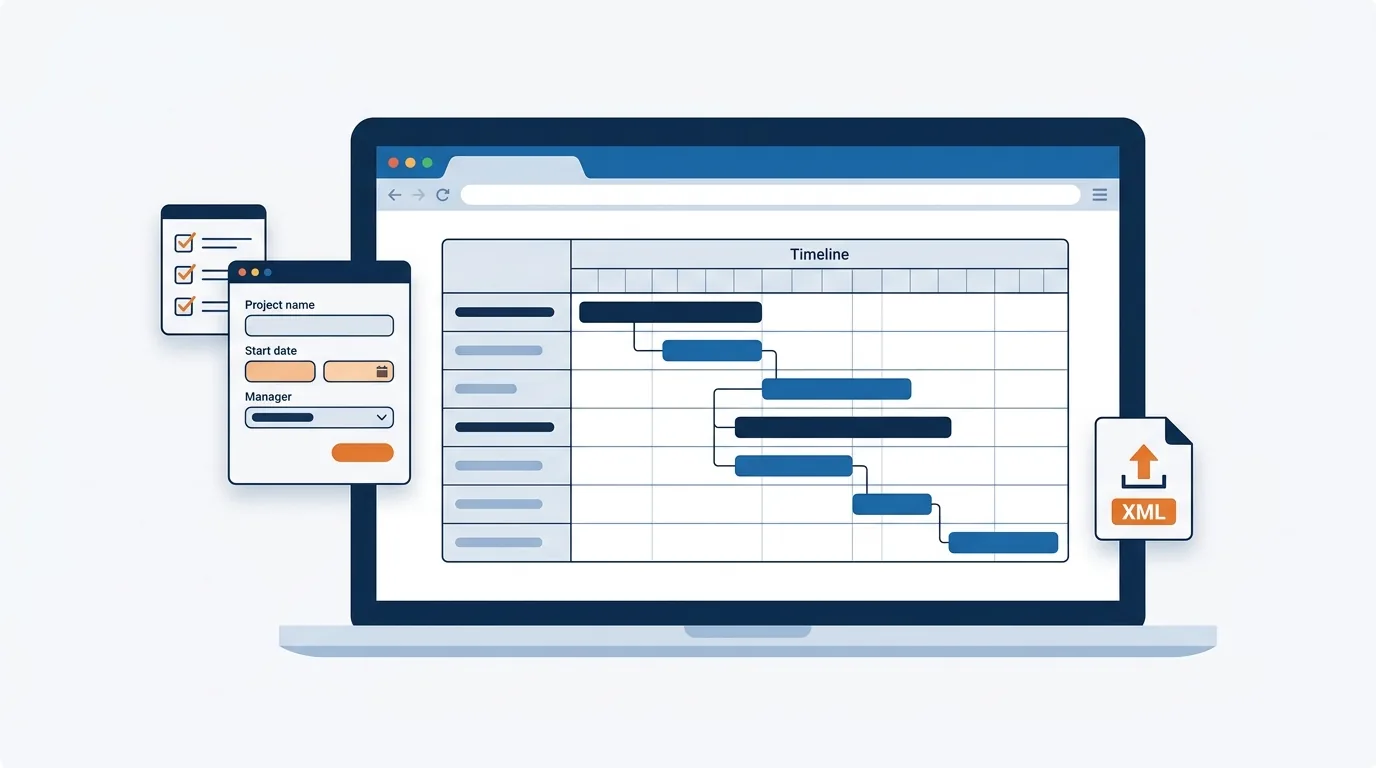
How to build a project schedule from scratch in your browser and export it as MS Project XML, Excel or PDF - no Microsoft Project licence required.
When someone asks you for a project schedule, the unspoken assumption is often that you will send over a file created in Microsoft Project. For many project managers, engineers and site coordinators, that assumption creates an immediate roadblock: Microsoft Project licences are expensive, tightly controlled by IT departments, and rarely handed out to everyone who needs to draft a timeline.
You do not need an active Microsoft Project licence to create a schedule that fits seamlessly into the MS Project ecosystem. Previous lessons on this site covered reading existing files — How to Open an MPP File Without Microsoft Project and How to Open an MPP File Online in Your Browser. This lesson covers the inverse scenario: starting from a completely blank slate, building a functional schedule online, and handing off a native-compatible file to colleagues who do use desktop scheduling software.
The entire workflow runs directly inside your web browser. There is no software to install and no account required just to draft a timeline — project2-me.com's own free MPP viewer online has a "Start a New Project" option that opens straight into this flow.
Initializing the Project Environment
Building a schedule begins by defining the basic metadata of the project. Before adding individual tasks or milestones, it helps to establish the administrative details that will appear on every exported report.
Starting a brand-new project online opens a short setup form. This form captures:
- Project Name — the title used in reports and exported files.
- Author and Project Manager — who drafted the schedule and who is accountable for its execution.
- Company and Category — organizational metadata for sorting the project within a larger portfolio.
- Start Date — the anchor date from which auto-scheduled tasks calculate their start and finish dates.
- Currency — the monetary unit assigned to any cost figures added later.
- Notes — a free-text field for anything that doesn't belong in a structured field (scope assumptions, a client reference number, a reminder for whoever opens the file next).
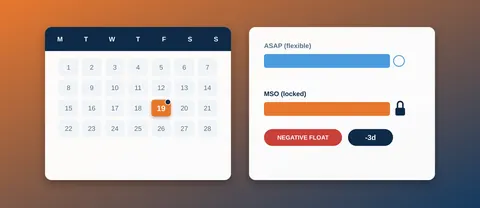
Setting the start date correctly at this stage matters more than it looks. Because the scheduling engine calculates task timelines through linked dependencies, changing the project's start date later shifts every downstream task that doesn't have a hard date constraint of its own.
Building the Schedule and Its Dependencies
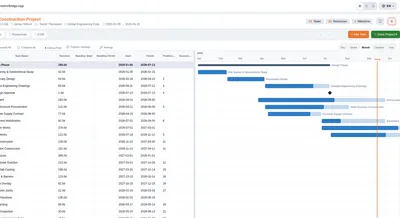
Once the project parameters are set, you land in an empty project workspace with a task grid and an empty Gantt chart pane next to it. Building out the schedule from there involves three mechanics: listing tasks, assigning durations, and linking dependencies.
Populating the task list
Enter your work breakdown into the task sheet as discrete, actionable activity names — specific enough that someone reading the schedule later understands the scope of work without asking you. Group related activities under summary tasks so the schedule can be collapsed into phases for an executive-level view, or expanded into full detail for the team actually doing the work.
Setting durations
Assign an estimated working duration to each task. As durations are entered, finish dates are calculated automatically against the project's working calendar. Milestones — reference points with zero duration, marking a deliverable or a decision point — are worth adding at the end of major phases rather than scattered throughout, so they stay meaningful as checkpoints.
Linking dependencies to form the Gantt chart
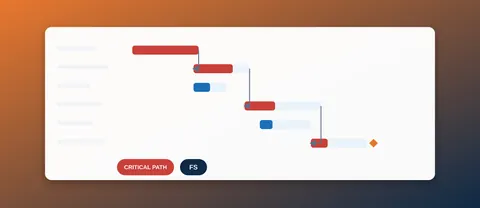
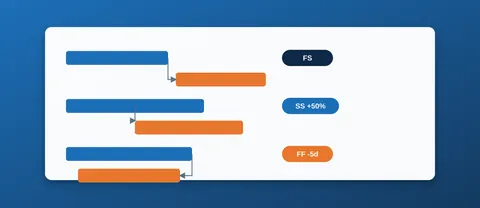
A list of tasks with dates typed in is just a calendar. Linking tasks by predecessor relationships is what turns it into an actual schedule model. Connect activities with Finish-to-Start (or other) logical links to represent the real sequence of work, and the horizontal bars in the Gantt pane update to reflect it. Once the network of links exists, moving one task's dates automatically shifts everything downstream of it — which is also what makes the schedule's calculated completion date and critical path meaningful rather than just typed-in guesses.
Exporting for the Microsoft Project Ecosystem
Once the schedule logic holds together, the next step is getting it in front of people who need to review or use it — and not everyone needs the same format.
XML (Microsoft Project format)
This is the export that matters most for cross-platform handoff. The XML file captures the full underlying logic of the schedule — task hierarchy, durations, start and finish dates, predecessor links and project metadata — in the open, structured format Microsoft Project reads natively. A colleague running a desktop copy of Microsoft Project can open this file directly, and it loads as a native MS Project plan. In practice, this means you can originate, build out and refine a complete schedule without ever holding an MS Project licence yourself, while still delivering a file that drops straight into an organization's existing MS Project workflow.
Excel and PDF
Not every stakeholder needs a dynamic scheduling file. For people who just need to check dates or print something for a meeting:
- Excel (.xlsx) — the task list with durations and dates as a plain spreadsheet, easy to filter or sort for anyone who isn't going to open a scheduling tool.
- PDF Report — a static snapshot of the schedule and Gantt chart, suited to email updates, printed site notices, or attaching to a contractual report.
What Happens to Your Data
Because the whole workflow — creating the project, building it out, exporting it — runs in your browser session against a backend that processes files in memory, nothing you type is written to a server disk. Files and project data are processed in RAM only and cleared automatically once the session ends; there's no account to create and no project library sitting on a server somewhere. For a one-off schedule you're building to hand off and move on from, that's a reasonable trade-off — for anything you need to keep and reopen later, export it (as XML, Excel or PDF) before you close the tab.
Between initializing the project parameters, building out network-linked task logic, and exporting to XML or spreadsheet formats, it's possible to originate a fully-formed project schedule without ever touching a Microsoft Project licence — while still handing colleagues a file their own copy of MS Project opens without complaint.