
A browser-based MPP viewer shows tasks, dates, dependencies and milestones instantly, no installation needed. Here is how it works and where its limits are.
You do not need Microsoft Project installed on your computer just to look at an MPP schedule. A browser-based MPP viewer can take the project file and turn its schedule information into a readable Gantt chart and task view directly in your web browser.
This is useful when a colleague, subcontractor, owner or client sends you an .mpp file and you only need to review what is inside it. You can inspect planned dates, task durations, dependencies and milestones without setting up a full desktop scheduling application.
The process is generally simple, but it helps to understand what the viewer is actually doing and where its limits are. (If you are still weighing this against other ways to access the file, see How to Open an MPP File Without Microsoft Project for the broader comparison.)
What Happens When You Open an MPP File Online?
An MPP file is the native project file format associated with Microsoft Project. Unlike a PDF, it is not simply a page containing a picture of a Gantt chart. It contains structured project information that a compatible application or viewer has to interpret.
When you use an online MPP viewer, the file is submitted to the web application and processed so that its project data can be displayed in a browser-friendly format.
You normally do not need to install a program, configure Microsoft Project, or convert the file manually first.
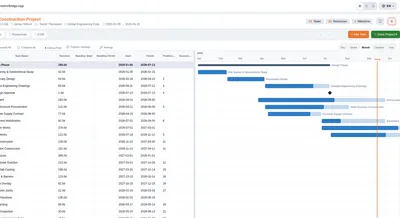
The viewer interprets the available project information and presents it through views designed for schedule review. The most familiar view is the Gantt chart, where activities are displayed against a time scale. A task list or similar data view can provide more direct access to individual activity information.
The result is not necessarily an exact reproduction of every part of the original Microsoft Project environment. The purpose of a viewer is primarily to make the schedule understandable and accessible.
What Can You See in an Online MPP Viewer?
The exact information available depends on the viewer and the contents of the MPP file, but a capable viewer can expose much more than just task names.
For a planner, the most useful information usually includes:
- Tasks and durations: the activities contained in the schedule and how long they are planned to take.
- Start and finish dates: when activities are planned to begin and finish.
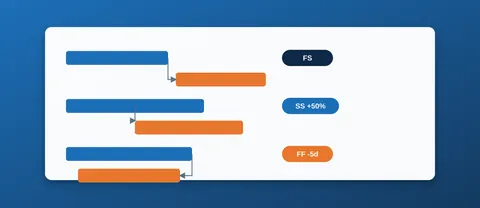
- Dependencies: the relationships between activities and which tasks are linked to others.
- Milestones: important project events and zero-duration control points.
- Resources: where the file contains resource assignments and the viewer supports them, which resources are associated with activities.
- Project structure: summary tasks, work packages and the overall organisation of the schedule.
This can be enough for many day-to-day schedule reviews.
For example, suppose a subcontractor sends an MPP file showing the planned fabrication and installation programme for a shipbuilding package. You may not need to change the schedule. You may simply want to check whether a particular activity is planned before a vessel milestone, whether the predecessor relationship is present, or how the subcontractor's work fits into the wider programme. A browser viewer can be useful for exactly this type of review.
How to Open an MPP File in Your Browser
The exact interface differs between online viewers, but the basic workflow is usually the same.
Open the viewer and load the file
Go to the browser-based MPP viewer and use its file-upload control, or drag the MPP file into the designated area if drag-and-drop is supported. With the free MPP reader online, the same basic browser workflow is used. The tool is designed to open supported Microsoft Project-related files without requiring a desktop installation or user sign-up.
Let the file load and process
After you select the file, the viewer processes the project data. The time required can depend on the file and the service being used. You should not expect the browser to treat the MPP file like a normal document such as a PDF. The viewer needs to interpret the project structure before it can display the schedule.
Review the Gantt chart
Once the file is displayed, start with the overall Gantt chart. This gives you a quick picture of the project timeline. Look at the major summary activities, the distribution of work across the schedule, important milestones and the relationship between major phases. For a shipbuilding schedule, this might mean checking areas such as engineering, procurement, steel preparation, block fabrication, erection, commissioning, trials and delivery.
Inspect individual tasks
Move from the overall programme to the task-level information when you need a specific answer. Check the task name, planned dates, duration, predecessor or successor relationships, and any other information exposed by the viewer. This is often faster than asking the sender to export a separate report for every question.
A Viewer Is Not the Same as Microsoft Project
This distinction matters.
Most browser-based MPP viewers are intended primarily for viewing and analysis, not for maintaining the original project schedule. Opening an MPP file successfully does not mean that you can edit its logic, change task relationships, update progress, modify calendars and save the result back as a fully functioning Microsoft Project schedule.
The exact capabilities vary between services, so check what the particular viewer supports. Project2Me's viewer, for example, is intended for browser-based inspection of project information, including Gantt chart and task data, dependencies, milestones and schedule-related information. It is useful for reviewing an existing file, rather than replacing a full project scheduling environment.
That distinction is especially important for planners. If your task is to understand a schedule, a viewer may be sufficient. If your task is to maintain the schedule, you need a tool capable of making and saving the required project changes.
Think About Privacy Before Uploading
There is one practical issue that should not be ignored with online file viewers: the file leaves your computer.
When you upload an MPP file to an online service, the service needs to receive and process that file. Project schedules can contain commercially sensitive information, including vessel names, contract milestones, resource information, production dates, costs or subcontractor data.
For that reason, an online viewer is generally more appropriate for schedules that you are permitted to upload. For confidential project information, check the service's privacy and file-handling terms and follow your company's information-security requirements.
Do not assume that every online viewer handles uploaded files in the same way. If file handling matters to your organisation, verify the provider's stated policy before uploading project data.
The same basic search intent exists in other languages as well. For example, German users may search for "MPP Datei öffnen online" when they need to open an MPP file in a browser.
When Is an Online Viewer the Right Choice?
A browser viewer makes the most sense when you have an existing MPP file and need a quick, read-only look at the schedule.
It is particularly convenient when someone sends you a project file but you do not have Microsoft Project available on the computer you are using. There is no need to install a desktop scheduling application simply to answer a question such as "What is the planned finish date for this activity?" or "When is the next major milestone?"
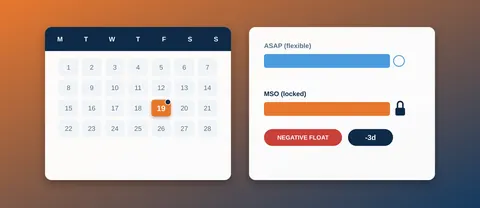
For regular schedule development, however, the requirement is different. If you need to create activities, change dependencies, update progress, manage constraints, work with calendars, maintain baselines or heavily modify the programme, a browser viewer should not be treated as a replacement for a full project-management application.
The useful dividing line is simple: use an online viewer when you need to read the schedule; use project-scheduling software when you need to manage it.
If you are on the other side of this problem - starting with nothing rather than an MPP file someone sent you - see Creating a Project Schedule from Scratch in Your Browser.