Effort driven in MS Project explained: what recalculates under Fixed Units, Fixed Duration and Fixed Work, duration vs work, and a worked welding example.
Add a second welder to a one-week task and MS Project might cut it to half a week, or it might not change it at all. Which one happens depends on two settings most planners never deliberately choose: the Task Type, and whether Effort-Driven scheduling is switched on. Getting these wrong is one of the most common reasons a resourcing change quietly produces dates nobody expected.
This lesson covers the formula behind every task, the difference between duration and work, a field-by-field table of what MS Project recalculates for each task type, and a worked example of adding and removing welders. All numbers in the examples are illustrative arithmetic, not yard productivity data.
Work, Duration and Units: the Formula Behind Every Task
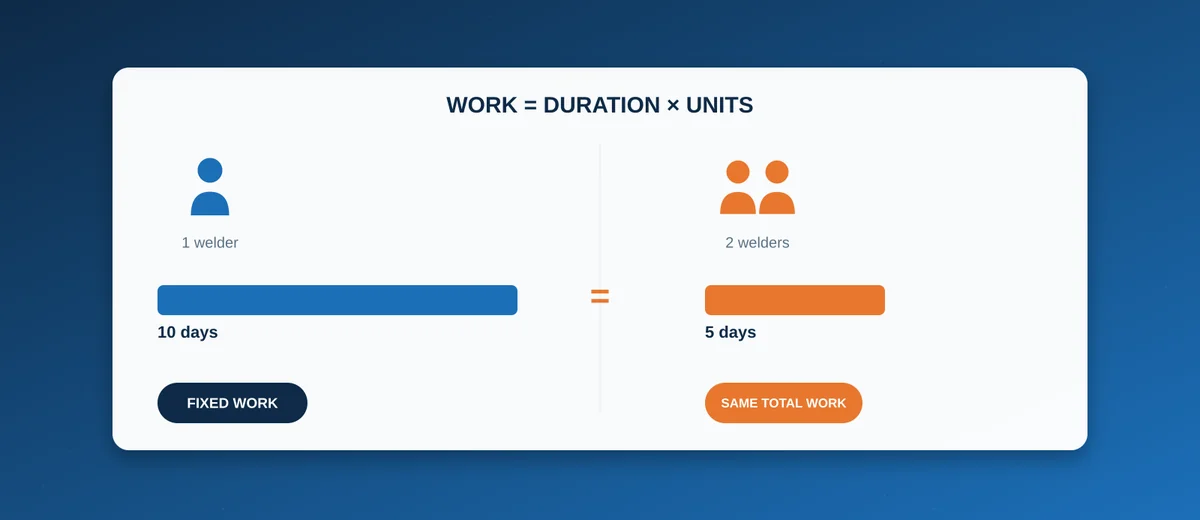
Every task with a work resource assigned is governed by one relationship, which Microsoft states as Work = Duration × Units:
- Work is the total effort in person-hours across everyone assigned.
- Duration is the span of working time on the calendar, from start to finish.
- Units is how much of each assigned resource's time goes to the task. 100% is one person full-time; two welders at 100% each give 200% in total.
Three variables, one equation: fix any two and the third is calculated. The Task Type is simply the setting that tells MS Project which one of the three to hold when you change something else.
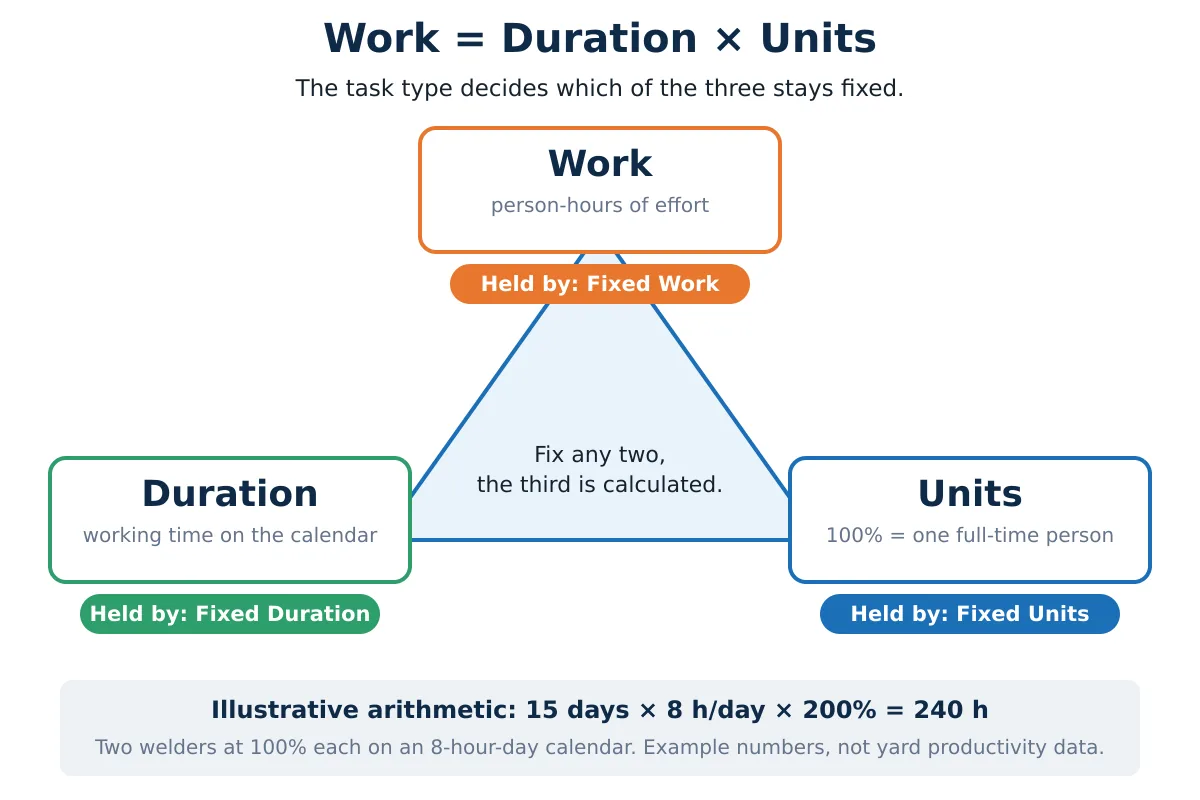
A quick check of the arithmetic on an 8-hour working day: two welders at 100% for 15 working days is 15 × 8 × 2 = 240 hours of work. Change any one of those numbers and something else has to move.
Duration vs Work: Two Different Numbers
Duration and work are easy to mix up because both can be typed in hours or days, but they answer different questions.
Duration answers "how long on the calendar?". Microsoft defines it as the total span of active working time for a task, counted between its scheduled start and finish on the working calendar. A 15-day duration on a five-day-week calendar covers three calendar weeks.
Work answers "how many hours of effort?". It is the total effort scheduled for all resources on the task. If you type a work value, MS Project divides it among the assigned resources.
The same task can have a small duration and a large work value (a big crew on a short job) or the opposite (one person spread thinly over a long window). In the example above the task is 15 days long but carries 240 hours of work. That is why a man-hour estimate and a schedule bar are not interchangeable: the estimate feeds Work, and the bar length is Duration after the crew size has been applied. The man-hour estimating lesson covers where the hours come from.
Two practical consequences:
- Working time versus elapsed time. Normal durations (
d,h,w) skip non-working time on the calendar. Elapsed durations (ed,eh,ew) count every hour, nights and weekends included. Microsoft's own example: on a calendar with Saturday and Sunday off,7druns Monday to the following Tuesday, while7edruns Monday to Sunday. - A task with no resources has a duration but no work. That is often exactly right for waiting time, as discussed under shipyard examples below.
The Three Task Types
Fixed Units (the default)
Units stay constant. Changing Work recalculates Duration, and changing Duration recalculates Work. This fits labour tasks where the crew size is the thing you actually know: a team of a known size works until the job is done, and extra scope extends the task rather than MS Project quietly assuming the crew grew. Microsoft describes Fixed Units as the type Project typically applies to tasks, and the default for new tasks can be changed under File > Options > Schedule > Default task type.
Fixed Duration
Duration stays constant whatever happens to the resourcing. If people are added, MS Project either spreads the existing work across them (effort-driven on) or adds their hours on top (effort-driven off), but the bar does not get shorter. Use it for anything genuinely time-boxed rather than effort-boxed: an inspection booked for a fixed window, a test hold period, a tide-dependent trial slot. Microsoft's own example is a one-hour weekly meeting that should not get shorter because more people attend.
Fixed Work
Total Work stays constant. Adding resources shortens Duration proportionally (double the crew, half the time), and a Fixed Work task is always effort-driven: Microsoft notes the setting cannot be switched off for this type. It fits divisible labour, a known quantity of welding, fairing or cabling that really does finish sooner with more hands, up to the point where access and crowding make the arithmetic stop being physically true.
What Recalculates When You Change a Field
Microsoft publishes the full rule set as a small grid. Rows are the task type, columns are the field you edit, and each cell is the value MS Project recalculates to keep Work = Duration × Units true:
| Task type | You change Units | You change Duration | You change Work |
|---|---|---|---|
| Fixed Units | Duration recalculates | Work recalculates | Duration recalculates |
| Fixed Work | Duration recalculates | Units recalculate | Duration recalculates |
| Fixed Duration | Work recalculates | Work recalculates | Units recalculate |
Source: Microsoft Support, "Change the task type for more accurate scheduling" (link in the FAQ below).
The grid is about editing a field on a task that already has its resources. Adding or removing people is a separate case, handled by the effort-driven switch in the next section.
Here is the same grid applied to the illustrative weld task (2 welders at 100%, 15 days, 240 hours, 8-hour day):
| Task type | Units cut to 50% each | Duration changed to 20 days | Work raised to 288 h |
|---|---|---|---|
| Fixed Units | Duration becomes 30 days | Work becomes 320 h | Duration becomes 18 days |
| Fixed Work | Duration becomes 30 days | Units drop to 75% each | Duration becomes 18 days |
| Fixed Duration | Work drops to 120 h | Work becomes 320 h | Units rise to 120% each |
Two cells deserve a second look. On a Fixed Work task, shortening Duration instead of lengthening it pushes Units up: cutting the same task to 10 days asks for 150% from each welder, an overallocation. On a Fixed Duration task, adding scope does the same thing (120% each above). In both cases MS Project has done the maths correctly and you now have a resourcing problem to solve, usually by adding a person.
Effort-Driven Scheduling: Adding and Removing People
Effort-driven is a separate on/off switch per task. It only matters when you add people to, or remove people from, a task that already has an assignment. With it on, total Work is held and the task absorbs the change wherever its type allows. With it off, a new person brings their own hours and total Work goes up.
| Task type | Effort-driven on: add a person | Effort-driven off: add a person |
|---|---|---|
| Fixed Units | Work held, Duration gets shorter | Duration held, Work goes up |
| Fixed Duration | Duration and Work held, each person's share goes down | Duration held, Work goes up |
| Fixed Work | Work held, Duration gets shorter (always on) | Not available |
Three details catch people out:
- The first assignment does not count. Microsoft states that effort-driven calculations apply only after resources are initially assigned. If you assign two welders at the same moment to a new task, the duration you typed stays put and the work is calculated from it.
- Summary tasks cannot be effort-driven, and neither can inserted projects.
- Fixed Duration can look odd in the Units column. On an effort-driven Fixed Duration task, the per-person loading that MS Project actually schedules is visible in the Peak field of the Task Usage view. Since Project 2010 the Assignment Units column can keep showing the value originally entered, which has confused many users (Microsoft Tech Community thread, answered by an MVP). Check Peak before concluding that a resource is loaded at 100%.
Where the switches live:
- One task: double-click the task, open the Advanced tab of Task Information, and tick or clear Effort driven. The task type is on the same tab. Adding the Type and Effort Driven columns to the Gantt sheet lets you review a whole schedule at once.
- All new tasks: File > Options > Schedule, the New tasks are effort driven check box and the Default task type list. These settings apply to new tasks; existing tasks keep their own values.
Microsoft's support pages describe how to clear the option but do not state its out-of-the-box value, and the value can also come from the template a project was started from, so check it in your own installation before relying on it.
Worked Example: Adding a Third Welder
Take a block weld-out task set up as above: two welders at 100%, 15 working days, 240 hours of work. The planner adds a third welder after the task already has its two assignments. Same change, five settings:
| Setting | Duration after | Work after | Each welder |
|---|---|---|---|
| Before the change | 15 days | 240 h | 100% |
| Fixed Units, effort-driven on | 10 days | 240 h | 100% |
| Fixed Units, effort-driven off | 15 days | 360 h | 100% |
| Fixed Duration, effort-driven on | 15 days | 240 h | about 67% (80 h each) |
| Fixed Duration, effort-driven off | 15 days | 360 h | 100% |
| Fixed Work (always effort-driven) | 10 days | 240 h | 100% |
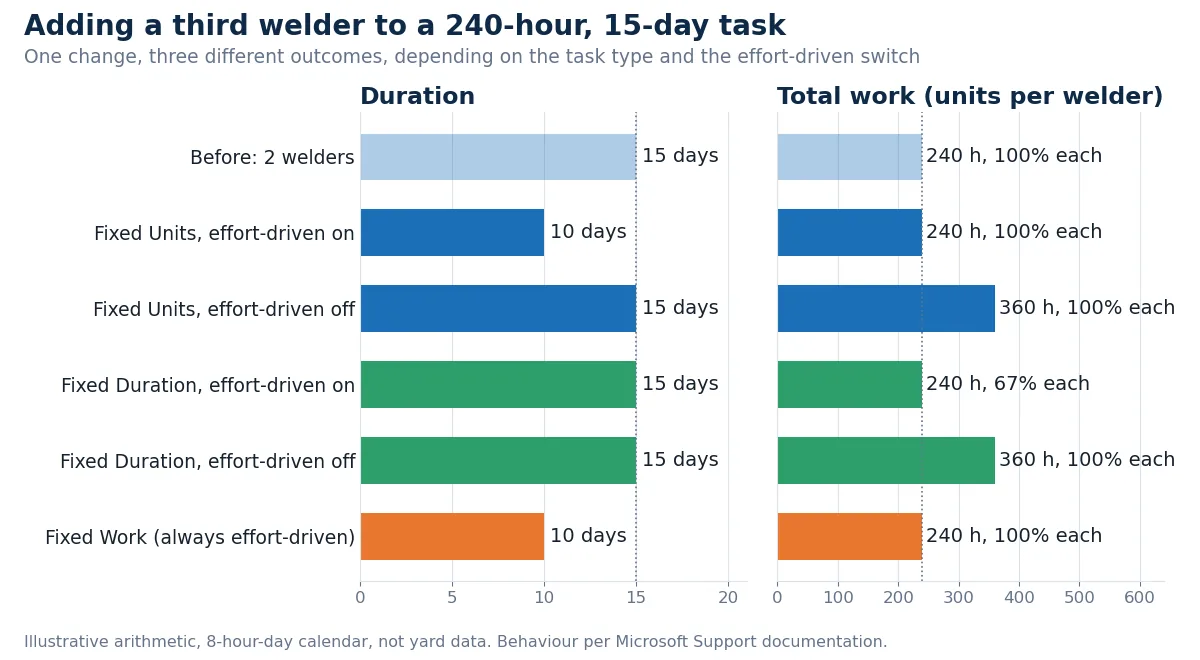
Read the table as three different planning statements:
- 10 days, 240 hours: "the job is a fixed quantity of welding and the extra welder shares it." This is what most planners expect when they add a name.
- 15 days, 360 hours: "the extra welder works alongside for the whole period and their hours are added." That can be right (for example, an extra person whose hours you genuinely need to book), but if the intent was to finish sooner, the plan now carries 120 hours nobody estimated.
- 15 days, 240 hours, 67% each: "the window is fixed and the same effort is spread thinner." Each welder is now partly free for other work in the resource plan.
Removing a person works the same way in reverse. On the Fixed Units task with effort-driven on, taking it from two welders back to one keeps the 240 hours and doubles the duration to 30 days, which is why Microsoft suggests turning effort-driven off on tasks where you do not want a removed assignment to move the dates.
Whether a real weld task scales like this is a production question, not a software one. Access to the joints, the number of welders who can work safely in the same space and the welding sequence used to control distortion all limit how far a crew can usefully grow, so agree a realistic crew size with production before letting MS Project shorten the bar.
Choosing a Task Type for Shipyard Work
The flow below is a starting point built from Microsoft's own description of each type. It is not a rule: the right answer depends on how your yard estimates and books labour.
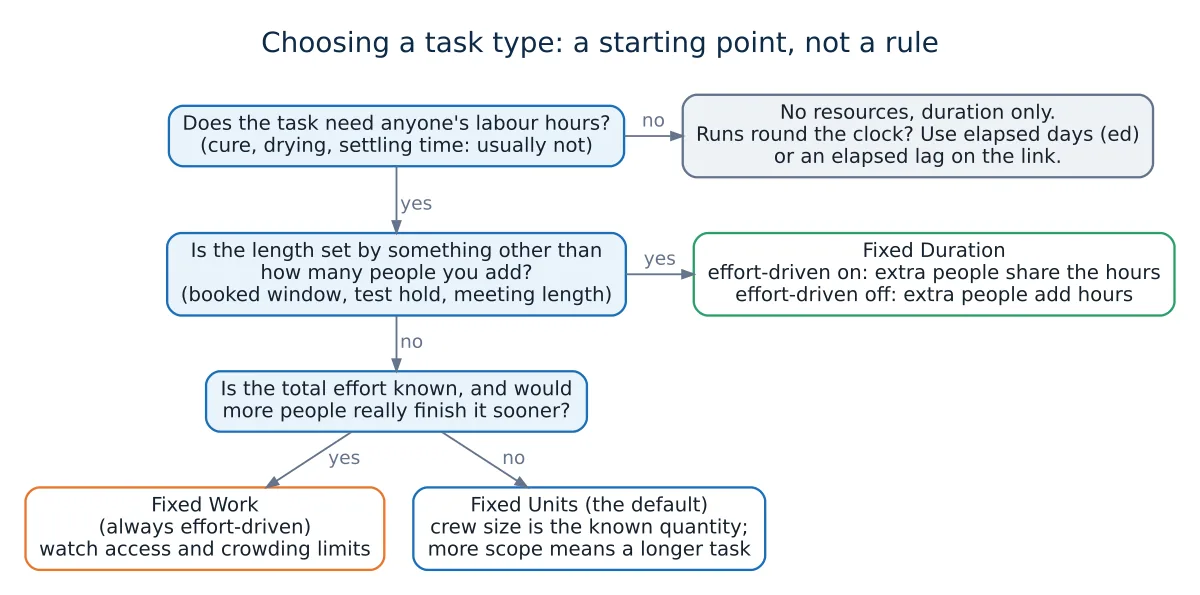
Typical shipyard cases, as a planner would reason about them:
- Block welding and fitting. A defined quantity of work that more welders can share, so Fixed Work, or Fixed Units with effort-driven on. The caveat is physical. Carl Chatfield's Microsoft Press article on effort-driven scheduling makes the general point with a brick-stacking example: extra people help, but only up to the point where they get in each other's way.
- Coating application versus cure time. Applying a coat is labour; the drying or overcoating interval after it is not. Modelling the interval as its own task with no resources, or as a lag on the link, keeps welders and painters from appearing busy while the paint cures. If the interval runs through nights and weekends, an elapsed duration (
ed) or elapsed lag matches reality better than working days. Lags are covered in the task dependencies lesson. Take the interval from the coating's product data sheet for the temperature you expect, since minimum overcoating times change with it. - Tests, inspections and trials. A pressure test hold, an inspection booked with class or the owner, or a sea trial slot does not get shorter with more people, so Fixed Duration. Whether extra attendees should add hours (effort-driven off) or share them (on) depends on how you want the labour report to read.
- Outfitting or commissioning by a fixed specialist crew. The crew size is what you know and the scope may grow, so Fixed Units: more scope should extend the task, not imply extra people.
A practical habit is to leave Fixed Units as the default and change the type deliberately only where something else is genuinely fixed: Fixed Duration for booked windows and hold times, Fixed Work for divisible quantities of labour. Adding the Type column to the Gantt sheet makes those exceptions easy to review.
Common Mistakes
- Leaving every task on the default Fixed Units without asking what is actually fixed. Time-boxed work (inspections, test holds, trial windows) then changes length when someone edits the resourcing.
- Adding a second person and expecting the bar to shorten when the task is Fixed Duration or effort-driven is off. The assignment succeeds and the hours go up, but the bar stays where it was. That is the setting working as designed, not a bug.
- Shortening Duration on a Fixed Work task to "speed it up". MS Project keeps the work and raises the Units on each assignment instead, which shows up as overallocation (150% per welder in the example above). On a Fixed Work task the lever for a shorter duration is more people, and only where the work genuinely allows it.
- Expecting effort-driven to act on the first assignment. Assigning several people at once to a new task does not shorten the duration you typed. Effort-driven only acts on later additions and removals.
- Booking labour against waiting time. Assigning people to a cure or settling task inflates the labour report. On an elapsed-duration task it is worse, because resources assigned to it are scheduled around the clock.
Frequently Asked Questions
What does effort driven mean in MS Project?
It means total work stays the same when you add or remove people on a task that already has an assignment. On a Fixed Units task the duration changes instead; on a Fixed Duration task each person's share of the work changes. With it off, adding a person adds their hours to the total. Fixed Work tasks are always effort-driven. See Microsoft Support: Change the effort driven setting for task types.
What is the difference between duration and work in MS Project?
Duration is the span of working time between a task's start and finish. Work is the total person-hours of effort by everyone assigned. They are linked by Work = Duration × Units, so two people full-time for 5 days is 80 hours of work on an 8-hour day.
Which task type is the default, and can I change it?
Fixed Units is the type Project typically applies. The default for new tasks is set under File > Options > Schedule > Default task type, and any single task can be changed on the Advanced tab of Task Information. See Microsoft Support: Change the task type for more accurate scheduling.
Where This Fits
Task type and effort-driven scheduling are not an advanced edge case. They decide what happens every time a schedule is re-resourced, which on a multi-year newbuild happens constantly. Matching each task's type to what is genuinely fixed about it (a crew size, a calendar-bound process, or a divisible quantity of work) keeps resourcing changes producing the dates the planner intended.
This sits alongside the mechanics in Task Dependencies in MS Project and Task Constraints in MS Project, and is worth settling before resource-levelling a full newbuild schedule (see Resource Leveling and Crane/Dock Capacity Planning). New to MS Project generally? Start with Introduction to MS Project for Shipyard Schedulers.
If you receive a yard's .mpp file and do not have Microsoft Project, the free MPP viewer opens it in the browser for reading. Changing task types and the effort-driven setting is done in Microsoft Project itself.