
A practical first walkthrough of Microsoft Project for planners coming from Excel, tasks, dependencies, the Gantt view, and the handful of fields that matter most on a newbuild schedule.
Most planners start their scheduling life in Excel, and Excel genuinely works for a simple task list. It stops working the moment a schedule needs real dependencies, automatic date recalculation, or more than a few hundred rows, which describes almost every newbuild schedule by the time steel cutting starts. This lesson is a practical first walkthrough of Microsoft Project aimed specifically at planners making that jump.
Why MS Project Instead of Excel
The core difference is that MS Project understands dependencies as real relationships, not just dates you typed in. Change a predecessor's duration and every dependent task recalculates its dates automatically, in Excel, you'd have to find and fix every affected row by hand, and on a schedule with thousands of rows that's not realistic to do reliably. Project also natively understands resources, calendars, milestones and the critical path, all of which Excel can only approximate with manual formulas.
The Core Fields You'll Actually Use
MS Project has dozens of columns available, but a newbuild schedule genuinely only needs a handful of them day to day:
- Task Name: keep it specific enough to be useful in a filtered view ("Erect Block 14, Zone C" beats "Erection").
- Duration: in working days by default; be consistent about whether weekends count for a given activity type.
- Start / Finish: normally calculated automatically from duration and predecessors rather than typed directly.
- Predecessors: the column that actually drives the schedule; entered as a task ID plus relationship type (e.g. "24FS" or "24SS+5").
- % Complete: update against actual physical progress, not against elapsed calendar time.
- Resource Names: even a simple text label per discipline (Hull Shop, Piping Foreman) is useful for filtering, before you invest in full resource-loaded scheduling.
Understanding Auto-Scheduled vs. Manually Scheduled Tasks
This is the single most common beginner trap. Project lets you mark a task as "Manually Scheduled," which means it will not recalculate its dates when predecessors change, it just sits at whatever date you typed, silently disconnected from the logic of the rest of the network. New tasks default to manually scheduled in a standard installation. Before you start building a real newbuild schedule, switch the default (or select all tasks and set the mode explicitly) to Auto Scheduled: otherwise the dependencies you carefully set up in the next section won't actually do anything.
Setting Up Dependencies
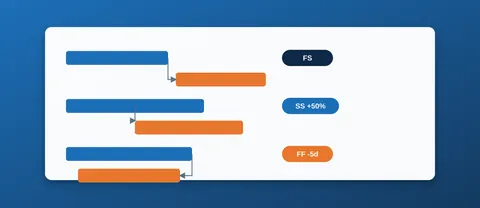
Finish-to-Start (FS) is the default relationship and covers the majority of cases: one activity must finish before the next begins. Enter it in the Predecessors column as the row number of the predecessor task. For the overlapping relationships covered in more depth in Task Dependencies in MS Project (Start-to-Start with a lag, for instance) add the type and lag directly: 24SS+5 means "start 5 days after task 24 starts." Build the dependency chain deliberately, task by task, rather than typing dates directly into Start/Finish, if you type dates directly, you've effectively told Project to ignore the logic, which defeats the entire point of using it over Excel.
Reading the Gantt Chart
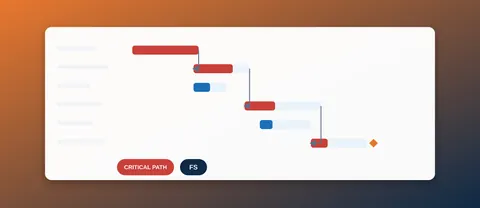
The Gantt view is where most planners live day to day. Milestones (zero-duration tasks, contract signature, keel laying, delivery) render as diamonds rather than bars, making them easy to scan for at a glance. Once a project has any logic in it, Project can highlight the critical path directly (Format tab → Critical Tasks), turn this on early; it's the fastest way to sanity-check that your dependency logic actually reflects the schedule you intended, rather than discovering the mismatch weeks later.
A Few Newbuild-Specific Habits
- Number your WBS by block or zone, not just by discipline, it makes it far easier to filter "everything happening on Block 14" when you need to check production readiness for one specific area.
- Use a consistent milestone convention (zero duration, a fixed naming pattern like "MS, Keel Laying") so milestones are easy to filter and report on separately from regular tasks.
- Set a baseline as soon as the schedule is approved, and don't quietly overwrite it, the whole point of a baseline is measuring how far the live schedule has drifted from the plan you started with.
Where to Go Next
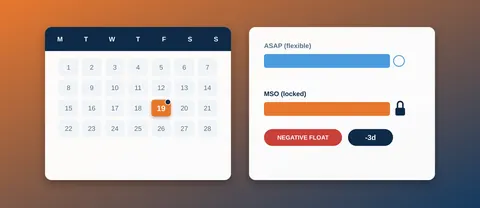
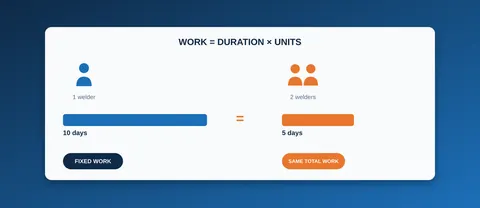
This lesson covers the fields and habits that get a newbuild schedule off the ground. Three areas deserve a dedicated, deeper look once you're comfortable with the basics: Task Dependencies in MS Project (all four link types plus lag/lead time), Task Constraints in MS Project (how a pinned date can quietly override the logic you just built), and Task Types and Effort-Driven Scheduling (why adding a second resource to a task sometimes changes nothing at all).
Try It Yourself
You don't need a license to start exploring a real multi-hundred-task newbuild schedule in this format, our free, browser-based MS Project Viewer lets you open and explore a full sample schedule (including the Gantt view, dependencies and critical path) with nothing to install. It's a practical way to see everything in this lesson applied to an actual project before you build your own from scratch.